 Pachat.ai

Codex Cloud vs Local: Which One Should You Use?
Updated 2026-11
TL;DR: Codex cloud runs each task in its own remote workspace, so you can hand off whole tasks, close the laptop and come back to a diff or a PR. Local Codex (CLI, IDE extension or desktop app) works inside your own repo with your own tools, so it is better when you want to steer every step. Most teams use both: local for the tight coding loop, cloud for parallel tasks that can run while you do something else.
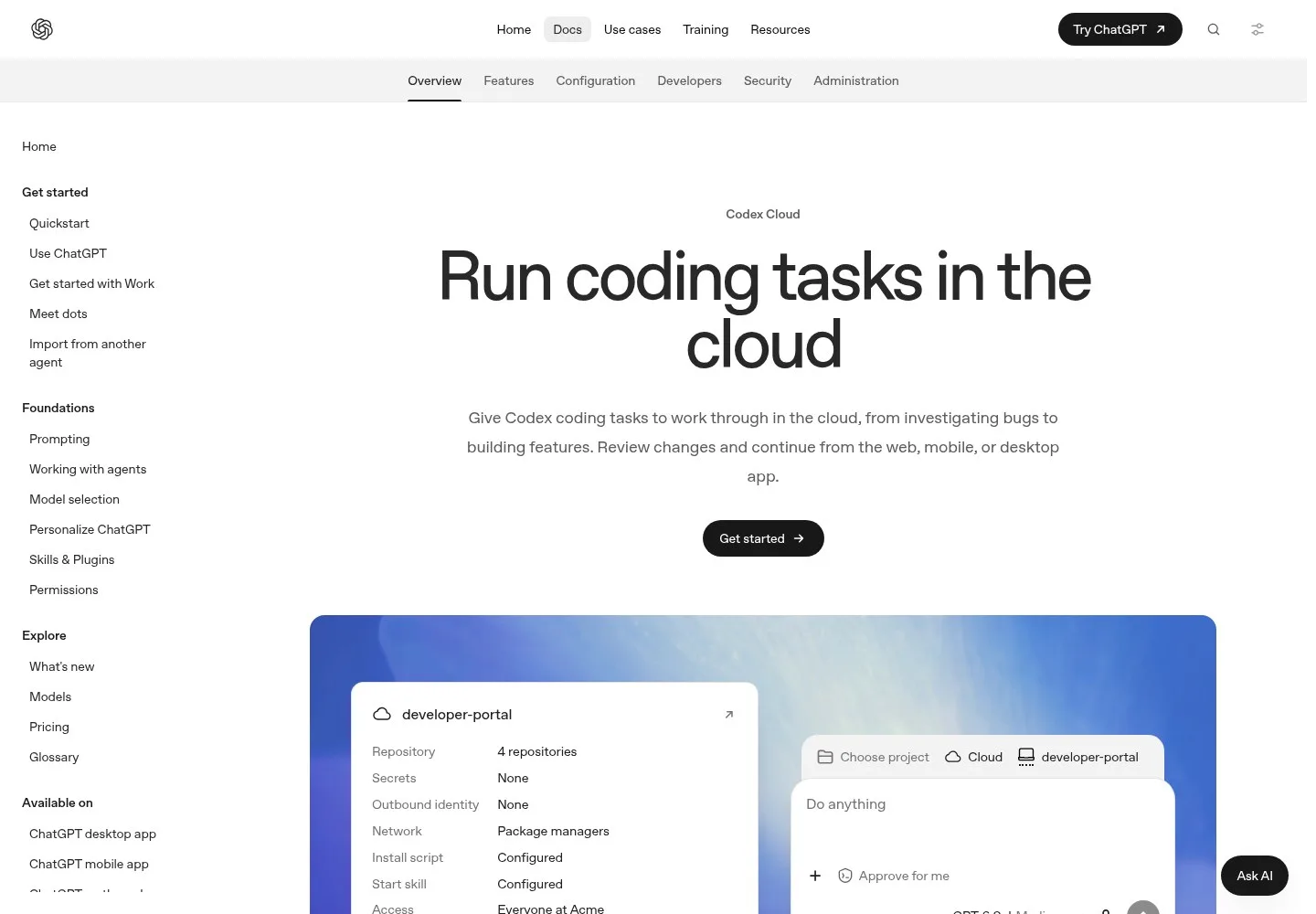
Screenshot of the official Codex Cloud documentation page, November 2026.
Codex Cloud vs Local: The Short Answer
The real difference in codex cloud vs local is where the work happens and how much you watch it. As of November 2026, OpenAI documents 2 main ways to run Codex: Codex Cloud, where each task gets its own remote workspace and can keep working while your computer is asleep, and local Codex, where the agent inspects files, makes edits and runs the tools already installed on your machine. The same agent sits behind both. The choice is about control, setup and how many tasks you want running at once.
Most people start with the IDE habit. A lot of folks are used to the kind of Cursor, Windsurf, GitHub Copilot style of AI development, which is really more about augmenting a single engineer. You're writing code in your IDE and you can press tab, tab, tab and it'll auto complete, and you're 10, 20, 40% faster, according to OpenAI's chief product officer at the May 16, 2025 Codex launch, describing Cursor, Windsurf and GitHub Copilot-style autocomplete.
The cloud flips that. With Codex in the cloud, you actually have a software agent that runs in the cloud that can do entire tasks for you.
You give it a task, it goes off and does it, and suddenly you have a PR and you didn't work on it at all.
| Codex cloud | Local Codex (CLI / IDE / app) | |
|---|---|---|
| Where it runs | Remote workspace per task | Your machine, your repo |
| Best for | Parallel, hand-off tasks | Step-by-step coding and review |
| Keeps going when you close the laptop | Yes | No |
| Uses your installed tools | Only what the environment sets up | Yes |
| How you review | Diff, follow-ups, PR | Live in the terminal or editor |
How Codex Cloud Works in Practice
Codex Cloud is the mode where you send a task to a sandboxed environment and review the result later. In the May 2025 launch it was described as a cloud based software engineering agent that can work on many tasks in parallel, and by November 2026 the docs let you start from the web, mobile or desktop app and pick an environment with or without a repository. Each task has its own workspace, so 3 tasks do not step on each other.
Basically this is like a coding agent that can work on multiple different tasks. If you connect this to GitHub, for example, you can take whatever repository you want to manage and then do all sorts of stuff with it: finding bugs, identifying and improving the code, and so on. It's a really good way to edit your code in a virtual environment using Codex.
A typical run looks like this. The task was "find and fix a bug in my code base." It took the code from GitHub, picked part of the code base that seems important and found a bug. It works for 2 minutes, 27 seconds, totally in the background in the virtual environment, in a June 2025 Codex cloud walkthrough where an SEO agency CEO asked it to find and fix a bug in a GitHub codebase. Then you can create a PR based on that and share the task directly with anyone who has the link.
So it's like this coding agent just goes off, does its magic, and then in the background you can just chill and do whatever you want. You can also click on view the log, so you can see all the stuff that it's doing so far.
People also use it in less obvious ways. One developer described it like this: "Codex is crazy. Been using it as a to do list instead of adding my tasks to a list, I just send them straight to Codex and merge them in later." Another developer, after getting Codex access on a Friday in May 2025, showed 53 GitHub contributions in four days: "That's 10% of my contributions over the last year in just the last four days since I got access to Codex."
Cloud Internet Access and Safety
Internet access is the setting that matters most when you move Codex to the cloud. In June 2025 the agent gained internet access, so you can give Codex access to the internet during task execution to install dependencies, upgrade packages, run tests that need external resources and more. At that time internet access was off by default, and the November 2026 docs still have you configure network access and allowed domains per environment.
Bear in mind that Codex in the cloud is running in a virtual environment online. If you enable it to access the internet as well, then there's security risks such as prompt injection, exfiltration of code or secrets, inclusion of malware or vulnerabilities, or use of content with license restrictions.
You've got to be careful with this. The safer move is to set up a preset list of domains it can allow, starting with the common dependencies, and only add secrets for services the task truly needs.
How Local Codex Works: CLI, IDE and App
Local Codex is the agent running on your own machine, against your own repository. The November 2026 CLI docs sum it up as "Inspect code, make changes, run commands, and automate repeatable work without leaving your terminal," and the same agent is also available in the IDE extension and the desktop app. In the October 2025 CLI demo, a full multiplayer game change went from plan to deployment in 1 terminal session.

Frame from the October 2025 Codex CLI walkthrough.
Getting started is short. You can install it really easily with either npm or brew and log in with your ChatGPT account. So here you're in your terminal and you just have to launch it by typing codex. That's all there is to it.
The local controls are what make it feel safe:
- Sandbox modes. This is where you get into the sandboxing features of Codex, which are very cool, very powerful. There are three modes: read only, auto, and full access. Auto is the default and that allows Codex to read files and make changes to files within the current directory. So by default, it stays in the boundaries of your project. It's not going to affect anything else on your laptop.
- Read only. That's useful for, for example, running outside of a Git repository, or when you only care about planning and don't want Codex to get distracted by trying to edit things.
- Model switcher. You sometimes want to use one model for one thing, one model for another. The very simple task can go very fast, but for the more advanced one, Codex can work on for like up to hours at a time.
- Resume. Codex resume allows you to pick up from any previous session.
Local is not only for writing code. You can also deploy things with it. You can use it for SRE type things: this bug shows up for your users, why is this showing up? Go look at the logs. Take these disparate data sources, combine them. It's surprisingly very, very, very good at that sort of thing. In the demo, Codex used web search to look up the latest docs and then used a command line tool to deploy the app. For more of the basics, see how to use Codex.
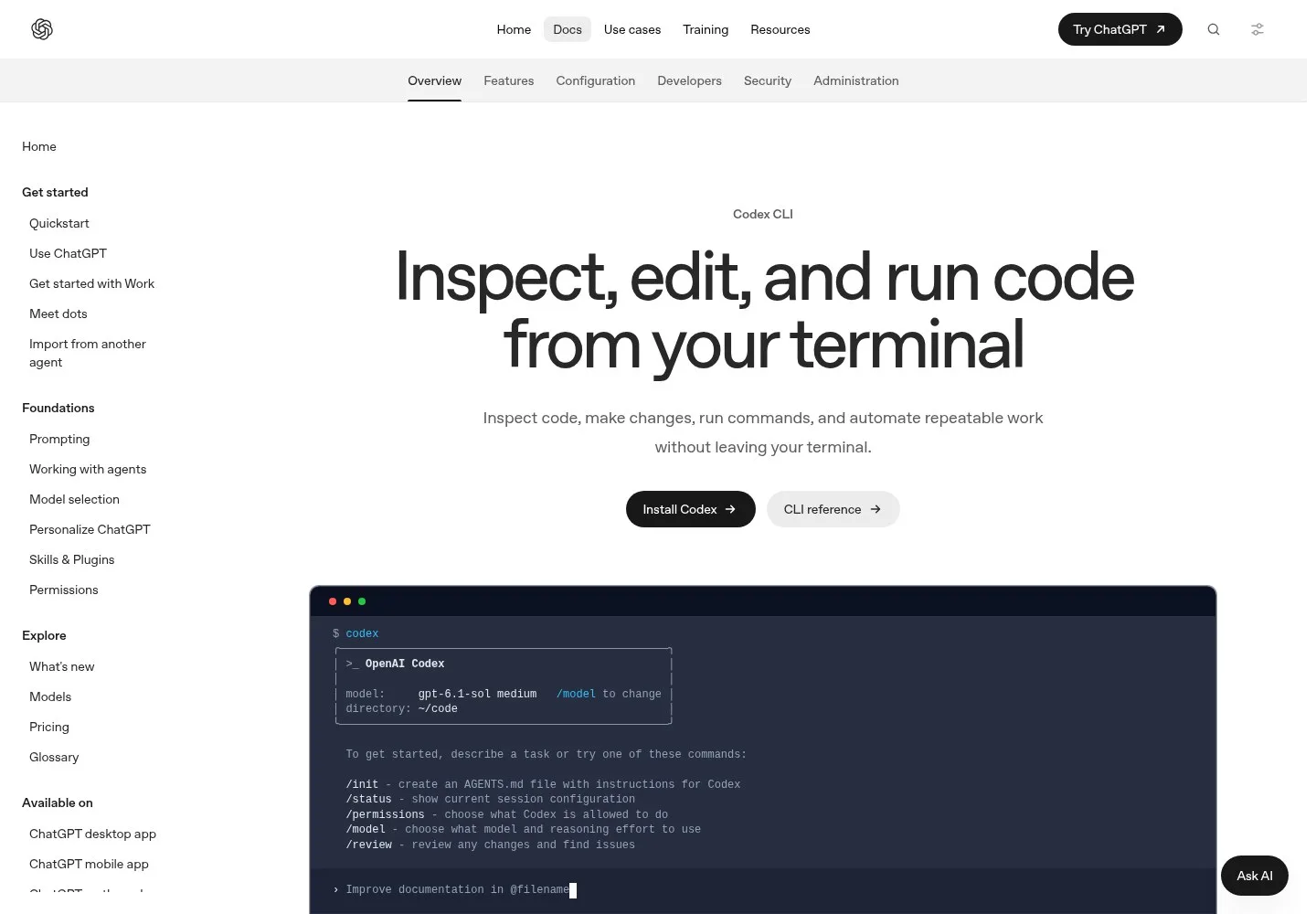
Screenshot of the official Codex CLI documentation page, November 2026.
Running Codex on Local Models
Running Codex on local models is the most "local" option: the agent and the model both stay on your machine. In May 2026, Ollama 0.24 added support for the Codex app, OpenAI's desktop coding agent for Mac and Windows. Before this, if you wanted to use Codex, you had to use OpenAI's models through their cloud. Now you can run the full Codex desktop app on a local model with 1 command.
The setup is simple:
- Make sure Ollama is updated to version 0.24 or newer.
- Install the Codex app. It works on macOS and Windows. Linux is not supported yet by the Codex app itself.
- Open your terminal and type ollama launch codex-app. You pick a model from the drop down and you are ready to start a task or open a repo. If you ever want to switch back to your original Codex setup, run ollama launch codex-app --restore.
The app features carry over. With worktree support, the Codex app can run multiple coding tasks at the same time. Each one runs in its own git worktree, which means each task gets its own isolated copy of your project. So you can have one thread fixing a bug, another adding a new feature, and a third writing tests all at the same time. Nothing collides. When you are happy with one, you merge it. When you are not, you throw it away. No risk to your main branch.
There is also a built-in browser, so you can spin up your local dev server, load it inside Codex, and then annotate directly on the page. Once Codex makes changes, you do not have to switch to GitHub or another tool to look at them. You just open review mode right inside the app.
Mixing Cloud and Local in One Workflow
Mixing cloud and local is now the normal setup, not an edge case. In November 2025, VS Code's Agent Sessions pane put local chats, cloud agents, a CLI agent and OpenAI Codex in 1 view, and by November 2026 the Codex CLI has a codex cloud command that lets you submit work to a configured environment and apply the result to your local repository from the terminal.
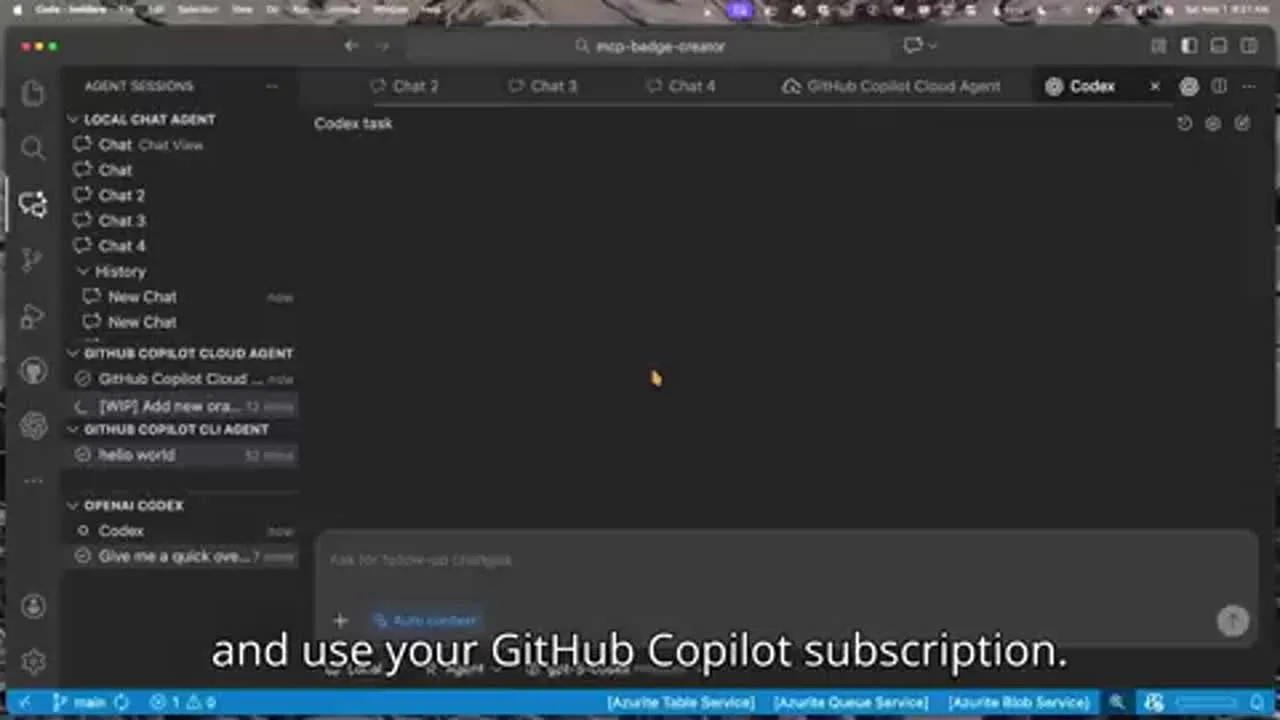
Frame from a November 2025 demo of the VS Code Agent Sessions pane.
In that kind of setup, you can easily open local chats and just start typing away. You can easily delegate off to the cloud agent with one click and have that work directly in the cloud. You also have the ability to use a CLI agent to run local tasks in the background directly on your machine. So no matter how you want to use local chats, cloud agents, a CLI or even OpenAI Codex, they're all integrated in one pane.
This was the plan from day one. It's a software agent in the cloud, and you can imagine using it in the future from your terminal, your IDE, all kinds of other places, and even hooking it up via API to your bug queues and just having this software agent churn through every single bug that you have. For each one, look at the context of the bug, understand your code base, and then suggest proactively how you would fix that bug and give you a PR that you can review.
It's not perfect yet, but I think this is the future.
If you want to check on a running session from your phone, see Codex remote control. If you are weighing other agents too, compare Claude Code alternatives and Cursor background agents.
How to Choose: A Quick Checklist
Choosing between Codex cloud and local is a per-task decision, not a one-time setting. As of November 2026, a simple rule works for most developers: if you need to watch, steer or use local tools, stay local; if the task is clear enough to hand off and you want 2 or more running at once, send it to the cloud.
Pick Codex cloud when:
- The work should run remotely while your computer sleeps.
- Several tasks need the same setup from one published environment.
- You want a PR at the end, not a live session.
Pick local Codex when:
- You work from the terminal and want one focused loop.
- You need scripting or CI with codex exec.
- You want a local code review before you commit.
- You want your code and model to stay on your machine.
Check Your Plan in Pachat Before You Hand It Off
Pachat is a web product at pachat.ai: "Different personal AI agents, in one group chat." It fits the moment before you decide which tasks go to the cloud and which stay local.
The pachat.ai homepage.
- Write down the tasks and where you plan to run each one.
- Open pachat.ai and put your Claude, Grok Bot, Muse and ChatGPT dots in one group chat.
- Paste the plan. They check each other's facts and argue it out, then you make the call.
FAQ
What is the difference between Codex cloud and local Codex?
Codex cloud runs each task in its own remote workspace, so the task keeps going while your computer is asleep and you review a diff or open a pull request at the end. Local Codex runs on your machine through the CLI, IDE extension or desktop app, inspects your files and uses the tools you already have installed. As of November 2026 both use the same agent; the difference is where it runs and how closely you steer it.
Is Codex cloud or local better for beginners?
For most beginners in 2026, local is easier to understand because you can watch every step in the terminal and approve changes as they happen. Start with the default auto mode, which keeps Codex inside your project folder, or read only if you only want a plan. Once you trust the results, move 1 or 2 clearly defined tasks, such as a bug fix with tests, to Codex cloud.
Can Codex cloud access the internet?
Yes, but it is a setting you control. Internet access for cloud tasks arrived in June 2025 and was off by default then. In the November 2026 docs you configure network access per environment, choose allowed domains and add secrets only for services the task needs. Keep the list short, because internet access raises risks such as prompt injection and leaking code or secrets.
Can I start a cloud task from the Codex CLI?
Yes. As of November 2026 the Codex CLI includes a codex cloud command. It lets you browse active and completed cloud chats, submit work to a configured environment and apply the result to your local repository from the terminal. That makes it easy to keep 1 tight local session open while a second task runs remotely, then pull the changes back when they are ready.
Can Codex run fully offline on a local model?
Partly. Since Ollama 0.24 in May 2026, you can run the Codex desktop app on a local model with ollama launch codex-app and pick a model such as gemma4:31b. The app works on macOS and Windows, not Linux yet. Expect smaller local models to be slower or less capable than hosted ones on hard tasks, and run ollama launch codex-app --restore to switch back.
Do cloud and local Codex tasks conflict with each other?
Not if you keep them separate. Each cloud task gets its own workspace, and the Codex app runs parallel threads in separate git worktrees, so 3 threads can fix a bug, add a feature and write tests at once. Conflicts appear when you merge, so review each diff, run your tests and merge one change at a time into your main branch, as you would with 2026 pull requests from people.
Can Pachat help me decide what to run in Codex cloud vs local?
It can help you think it through. Pachat is "Different personal AI agents, in one group chat." Before you split work across Codex cloud and local, put your Claude, Grok Bot, Muse and ChatGPT dots in one group chat and paste your task list, for example 3 tasks with notes on where each should run. They check each other's facts and argue it out, then you make the call. Try it at pachat.ai.
Planning your next Codex task? Get a second opinion at pachat.ai.
References
- Codex Cloud, OpenAI (Codex docs), fetched 2026-11-23
- Codex CLI, OpenAI (Codex docs), fetched 2026-11-23
- Ollama, v0.24.0 release notes, 2026-05-14
- @tbpn, X, 2025-05-16
- @daniel_mac8, X, 2025-05-20
- @JulianGoldieSEO, X, 2025-06-05
- @romainhuet, X, 2025-10-15
- @JamesMontemagno, X, 2025-11-01
- @JulianGoldieSEO, X, 2026-05-24