 Pachat.ai

How to Use Codex: Reasoning Levels and Real Tasks
Updated 2026-11
TL;DR: To use Codex well, start with a clear brief and the default setting, and raise the reasoning level only when a hard problem stays unsolved. Then hand it real jobs such as prompt writing, video editing or home tasks. Check your usage allowance before a big job.
How to Use Codex: Start With the Right Setup
Codex is OpenAI's coding and work agent, and the first step is simply choosing where to run it. As of November 2026, Codex is included in the ChatGPT Free, Go, Plus, Pro, Business, Edu and Enterprise plans, and it runs in the ChatGPT desktop app, the command line (CLI), IDE extensions and on iOS. On macOS or Linux you can install the CLI with one command and then sign in with your ChatGPT account.
curl -fsSL https://chatgpt.com/codex/install.sh | sh
Codex works in a project folder, so open the folder that holds your files first. Everything else in this guide builds on that one habit: give Codex a folder, a goal and a way to check the result.
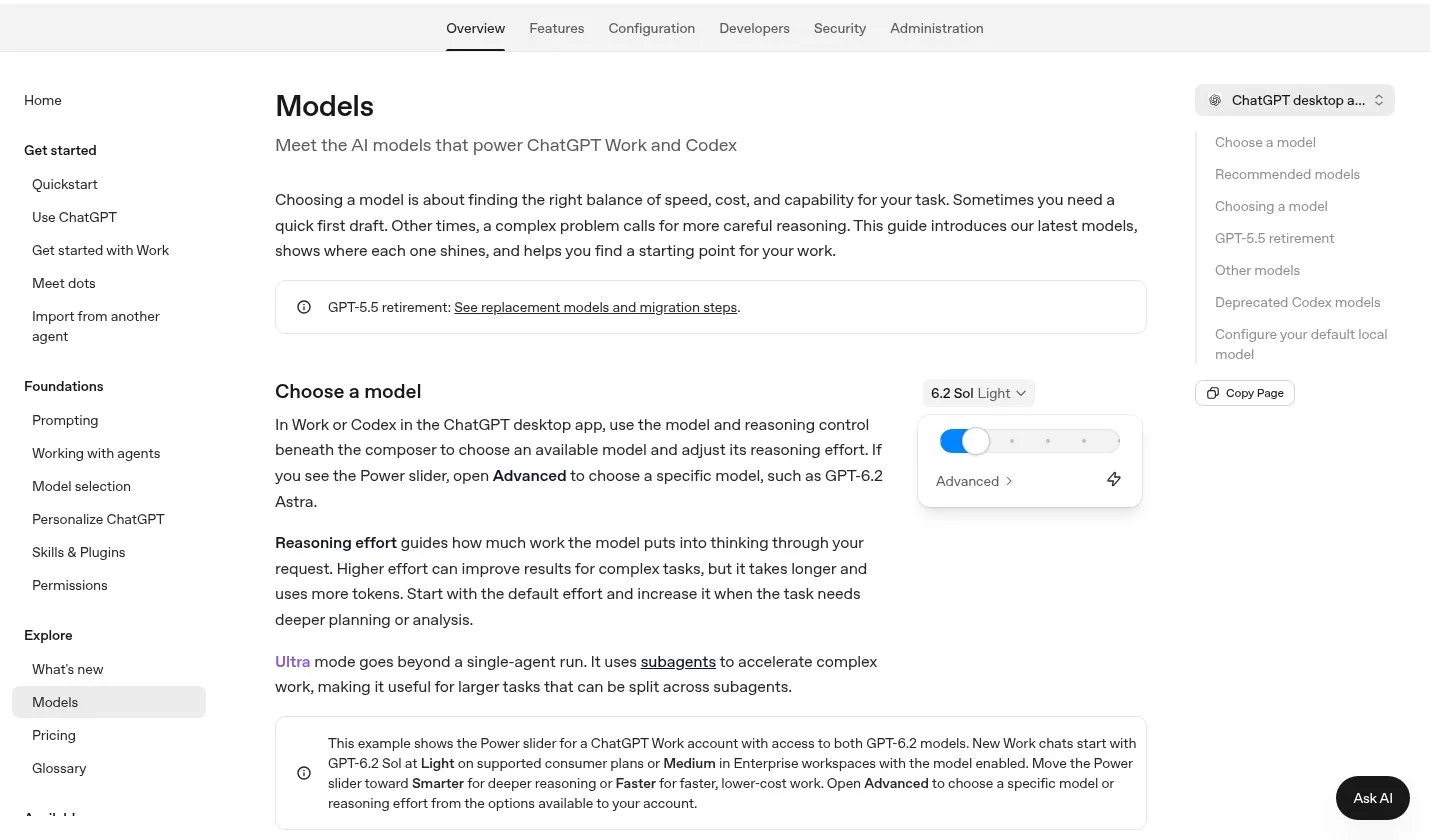
Screenshot of the official Codex models documentation, November 2026.
Choose Low, Medium or High Reasoning
A reasoning level is a setting that controls how much thinking a model does, and it is not a switch to a different AI. In November 2026 the most useful rule of thumb is to match the level to the size of the task. Low suits one-line fixes, Medium suits everyday building, and High is for the hard cases. Models that support it also offer an Extra High level, but a higher setting does not always give a better result.
Low, Medium and High are basically a setting that adjusts how much computation the same model spends on thinking.
That means you are not switching to a different AI.
Here is how the levels split up in practice:
- Low: "Low is suited to simple, clear tasks such as changing the text on a button or adjusting a color."
- Medium: "Medium is recommended for everyday programming, app development and general error fixes. It is a setting that makes it easy to balance speed and depth of reasoning."
- High: High shows its strength on bugs with unknown causes, complex designs and problems where several features are tangled together.
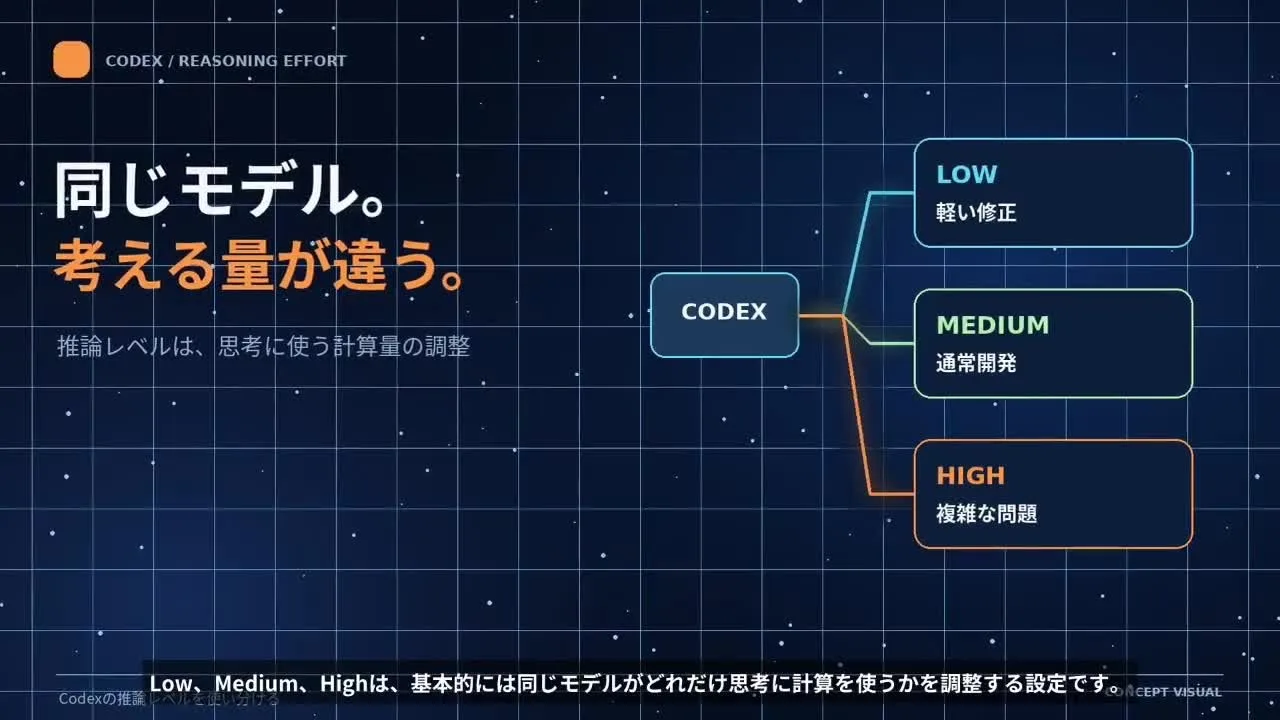
Frame from a video on Codex reasoning levels, November 2026.
The official documentation agrees: start with the default effort and raise it when the task needs deeper planning or analysis.
Give Codex a Brief It Can Finish
A brief is the short checklist that matters more than any reasoning level, because Codex needs clear conditions before it can act on its own. In 2026 the pattern is the same on every setting: how far Codex goes without asking depends on your instructions, the files you hand over, its permissions and its approval settings. Think of the brief as a short checklist of what to build, which files to use and what counts as done.
How far Codex decides and proceeds by itself is not determined by the reasoning level alone. It is also affected by your instructions, the files you hand over, operating permissions and approval settings.
For example, if you only tell Codex to make an app that feels nice, you may get something different from what you expected, no matter how high the reasoning level, if the necessary conditions are unclear.
On the other hand, if you make clear what to build, which files to use and what you can check to call it finished, Medium can sometimes give a good enough result.
What matters is not setting it to High from the start, but preparing a state in which the AI can work without getting lost.
A simple routine follows from this:
- Write down the information Codex needs and the finish line.
- Run the task on the model's default setting and check the result.
- Try Low on simple tasks.
- Move up to High only when a hard problem is still not solved.
- Before choosing a higher level, improve the instructions and the way you verify the result.

Photo: a laptop workspace.
If Codex asks to run a command or touch files outside the project, read the approval prompt before you accept it.
Real Jobs You Can Hand to Codex
Codex handles more than code, and the clearest examples are short, repeatable jobs that follow a script. A common case in November 2026 is short-video production, where each scene needs an image prompt and a video prompt. Done by hand, that takes about 5 hours per video, and 30 videos would take more than 150 hours. Handing the splitting and the wording to Codex turns the same work into one instruction.
Please split this script into scenes and write an image-generation prompt and a video-generation prompt in English for each scene. Keep the characters' appearance consistent across all scenes.
From scene splitting to character consistency, Codex thinks of all of it, so all you do is copy and paste.
Codex can also drive the apps on your computer. One creator demonstrates the computer-use plugin on a video edit:
Codex has a plugin called computer use, and with it Codex actually opens the apps on your PC and moves the mouse to operate them.
The instruction in that demo is short: put the video clips in the project folder, join them in script order, cut at scene changes, add white captions, add bright background music and export vertically for short video.
At home, another creator hands Codex everyday records:
Take a photo of the refrigerator with your phone, and leave the job of organizing the names of the foods, the number of visible containers and their locations into a list from that photo or video to Codex.
Know Your Usage Allowance Before Big Jobs
Your allowance depends on how big each request is, so check it before you start a long task. As of October 2026, the official guide for ChatGPT Plus says the local-message estimate for Work and Codex is roughly 15 to 160 messages per 5 hours, and it is an estimate, not a fixed limit. A three-round exchange of request, revision and finish works out to roughly 5 to 53 sets, and that is not a guarantee of how many jobs you can complete.
Even the same single request does not use the same amount.
Which plan to choose depends on how you actually use it more than on your job.
Try it on your own work and choose from what is lacking.
Plan limits also change. On October 29, 2026, OpenAI reversed a planned cut to the Work and Codex allowance on one Pro plan, and the higher allowance stayed in place for existing subscribers without any renewal step.
Use Codex Alongside Other Agents in Pachat
Pachat is a web product at pachat.ai whose official line is "Different personal AI agents, in one group chat." It fits the moment when you want a second opinion on what Codex produced. In Pachat you put your Claude, Grok Bot, Muse and ChatGPT dots in one group chat, and they check each other's facts and argue it out, then you make the call.
Steps for a second opinion:
- Open pachat.ai and sign in.
- Follow the Pachat guide to connect agents and start a group.
- Paste the plan or result you got from Codex into the group chat and ask the agents to check each other's facts.
- Read where they disagree, then decide yourself.
For more on agent basics, see how to build an AI agent and a first Claude Code task. To try a group chat of your own, go to pachat.ai.
FAQ
What is the first step in using Codex?
Open a project folder and give Codex a clear goal. As of November 2026 you can run it in the ChatGPT desktop app or install the CLI on macOS or Linux with the official one-line command. Then write what you want built, which files to use and what counts as finished. A clear brief matters more than any setting, and you can refine it over two or three rounds.
Which reasoning level should I start with?
Start with the model's default level. Use Low for simple, clear jobs such as changing a button label, Medium for everyday programming and common error fixes, and High for bugs with unknown causes or designs that tie several features together. The three levels are about 3 settings of the same model, so you are not switching to another AI. Raise the level only if a hard problem is still unsolved.
Does High make Codex finish everything on its own?
No. A higher level lets the model think more deeply, but how far Codex goes by itself also depends on your instructions, the files you share, its permissions and the approval settings. In a 2026 walkthrough, a vague request like "make a nice app" gave poor results at any level. Clear conditions and a way to check the result often let Medium do the job.
Can Codex operate apps on my computer?
Codex has a computer-use tool that can open apps and move the mouse on your PC, and one creator showed it assembling a video edit in November 2026. Treat that as one person's demonstration, not a promise for every app. Start with a small task, watch what it does, and keep the approval settings on so you can review each step.
How many requests can I make on a Plus plan?
The official estimate for the Plus plan is about 15 to 160 local Work and Codex messages per 5 hours, depending on the model and the size of the task. It is not a fixed limit and it is not a promise of how many jobs will finish. Test a typical job of yours a few times and see how your allowance drops.
What is Pachat and how does it relate to Codex?
As of November 2026, Pachat is a web product at pachat.ai with the official line "Different personal AI agents, in one group chat." You can use it when you want other agents to review what Codex gave you. Put your agents in one group, ask them to check each other's facts, and then make the call yourself. Start at pachat.ai.
How do I try a second opinion on a Codex result in Pachat?
Open pachat.ai, connect your agents and start a group, then paste the Codex result and ask the group to check it. The Pachat guide updated on November 16, 2026 walks through connecting two assistants and checking a full message exchange. The agents argue it out, then you make the call. Details are at pachat.ai.