 Pachat.ai

Codex Remote Control: How to Run Codex From Your Phone
Updated 2026-11
TL;DR: Codex remote control lets you open Codex in the ChatGPT mobile app and keep working with a computer where Codex runs. OpenAI launched it on May 14, 2026 for iOS and Android, and your files stay on that machine, so it has to stay awake and online. For work that should keep going with the laptop closed, use a VPS over SSH or a Codex cloud environment.
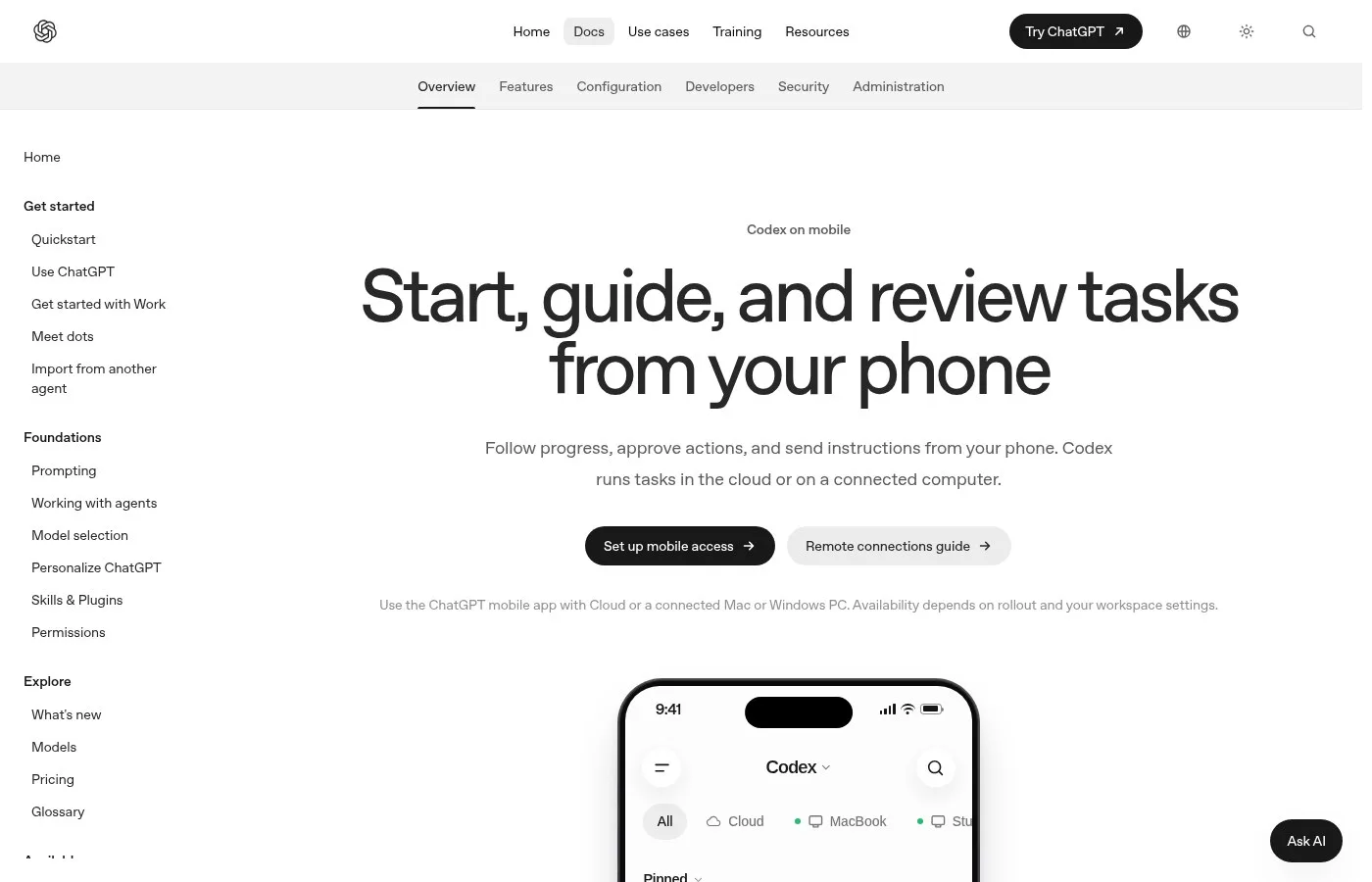
Screenshot of the official Codex on mobile docs page.
What Is Codex Remote Control?
Codex remote control is the feature that lets you use the ChatGPT mobile app to reach a computer where Codex is running. OpenAI announced it on May 14, 2026 as a preview on iOS and Android across all ChatGPT plans. From the phone you can check threads, review output, approve commands and start new tasks, while the work itself stays on 1 machine.
ChatGPT can now control your computer from your phone using Codex on mobile.
Imagine starting a task on your laptop like writing code, researching data or building a workflow, and then leaving your desk while the AI keeps working in the background.
Now from your phone, you can check your progress, give new instructions, approve actions and manage everything, without touching your computer directly.
The AI is still running on your actual computer or a remote environment, but your phone becomes a control center for your digital work.
How to Set Up Codex Remote Control
Setting up Codex remote control is a pairing step between the Codex desktop app and the ChatGPT mobile app. As of November 2026 it works with Mac and Windows; Windows support arrived in late May 2026. You sign in with the same ChatGPT account on both, scan a QR code, and the computer shows up in the list. The link runs through a secure relay.
If you have to check in on Codex doing the work, you can use the ChatGPT app on iOS or Android to set it up.
Click the mobile icon at the bottom of your Codex app or go into the Settings Connections menu. You'll have to make sure that you're signed into your ChatGPT account to enable access.
Once you're signed in, scan the QR code and log into Codex on your ChatGPT mobile app and your Windows device should appear in the list automatically.
From here, you can see existing running tasks or start new ones as long as your computer is turned on and connected to the internet.
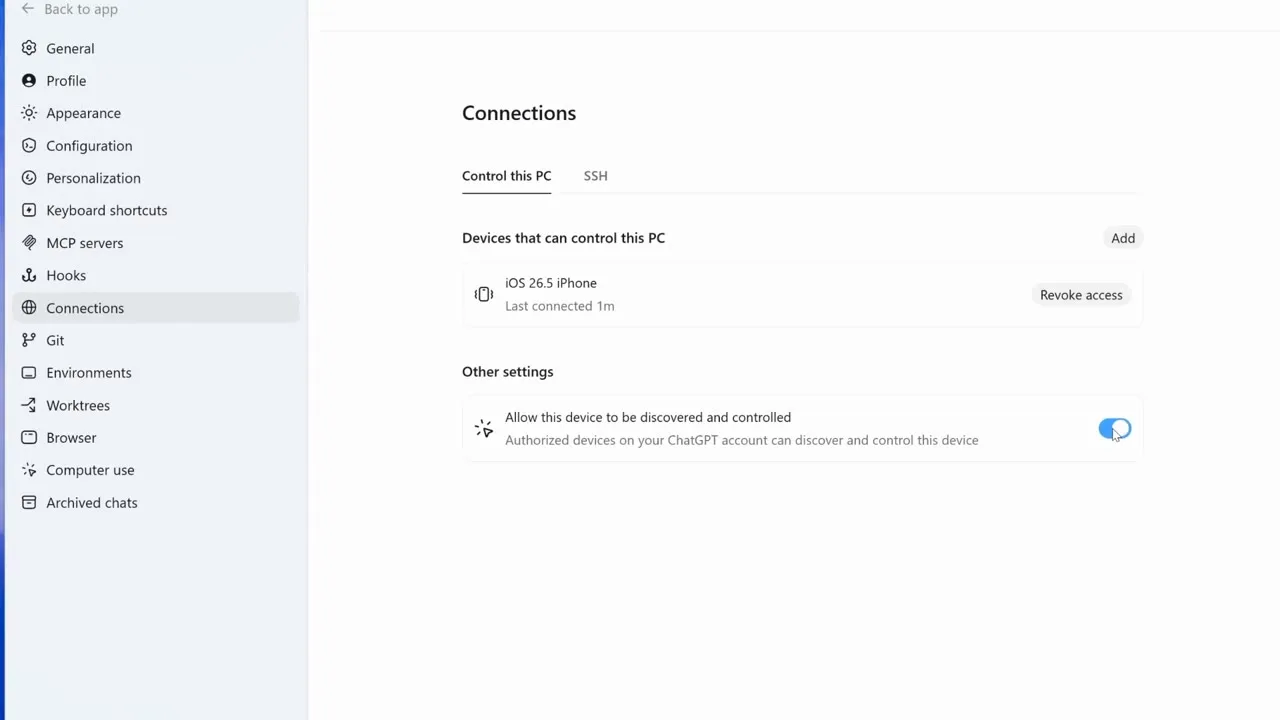
A frame from a walkthrough of computer use and mobile access in the Codex app on Windows.
Let Codex Use Your Computer While You're Away
Computer use is a Codex feature that lets it operate apps on your computer for you. In the May 2026 Windows update it shipped together with mobile access, so you can start a task that clicks through real apps, walk away, and check on it from your phone. You turn it on in the Codex app settings before you leave.
Computer use can control any app on your computer and perform tasks on your behalf. Go into the settings in your Codex app and enable the Computer Use option.
Once Codex starts using your computer to perform tasks, it will take over your computer screen and cursor.
This is a great opportunity for you to get up, stretch, grab a glass of water or run off to your next meeting. Just leave your laptop at your desk, having Codex do all the work.
Run Codex on a VPS and Work by Voice
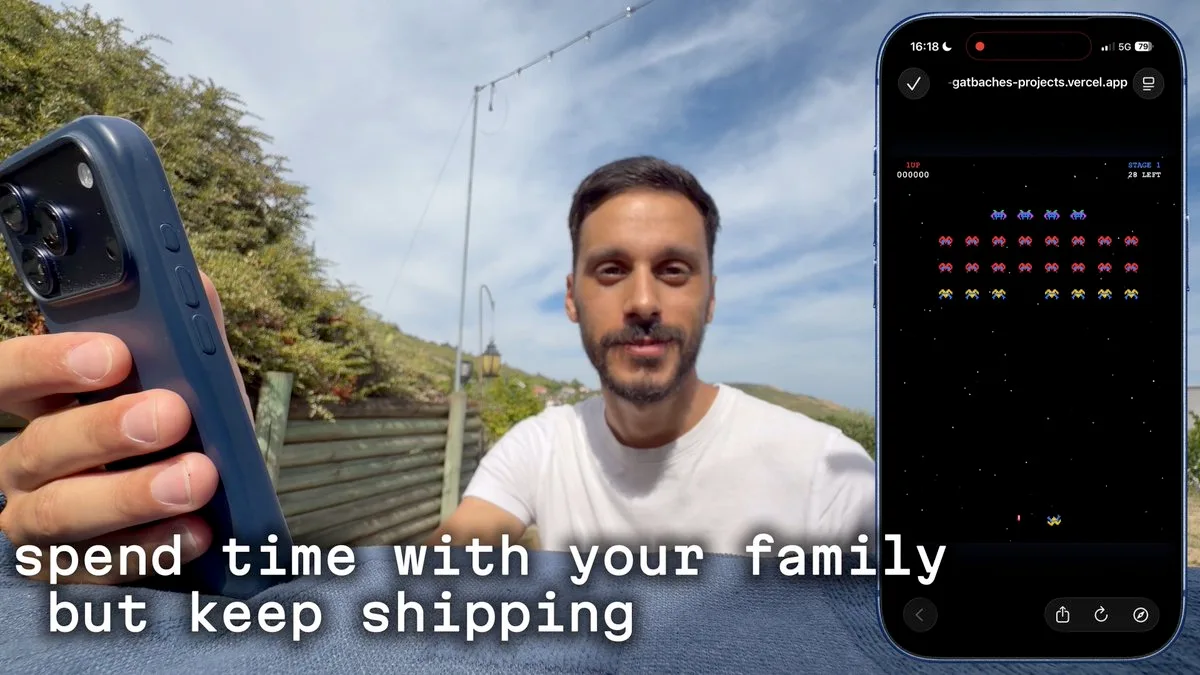
A VPS setup is a way to keep Codex running on a rented server instead of your laptop. Codex can connect to remote machines over SSH, and in August 2026 one developer described moving all his projects to a VPS and driving Codex from the ChatGPT app on his phone for days without opening his laptop at all, mostly using voice.
You don't really need your laptop to work anymore.
There's also little point in using things like a terminal on your phone, because using a terminal on your phone is kind of complicated. It's not natural. You may honestly not even type on your phone, and just use voice to do most of the things.
So what works now is Codex, since Codex now allows you to SSH into a remote server and continue working there.
All you have to do is go to the ChatGPT app on your phone, connect to your VPS, open that thread and ask it, hey, fix this thing.
If you're doing back end related stuff, yes, it is pretty much this simple. But if you're doing front end related stuff, it gets a little more complicated, because your localhost isn't exposed to the internet.
Use Cloud Environments When the Laptop Is Off
A Codex cloud environment is a setup on OpenAI-managed computers where tasks keep running even when your own computer is asleep. In a September 2026 demo, the OpenAI developer team showed starting a task in the cloud, closing the laptop and adding to the task from a phone, including by voice. Some third-party apps offer a similar hosted machine for coding agents.
Kick the task off in the cloud, which means you can close this bad boy and the task still runs.
And you can pick that task back up whenever you want because it's running in the cloud. You can even use your phone. You can just add to the running task without interrupting.
And it even allows for voice. You can pop in your headphones and go for a walk.
What's nice about this is it's a snapshot, so you don't ever need to do that setup over and over again. You can run multiple separate tasks and use this environment as the starting point.
Third-party apps take the same idea further: you just connect your accounts, they give you a cloud machine, and you just get coding with AI.
Check What Keeps Running
Leftover processes are background tools that can keep running after a task looks done. One developer noticed this in November 2026 after finishing several tasks from the ChatGPT app on a Mac. It is worth opening your system monitor now and then, especially on a laptop you leave on for remote work, so 1 forgotten thread doesn't keep using memory for hours.
You finish a Codex task in the ChatGPT app, you move on. But do its tools actually stop?
Open Activity Monitor, search node. What's your number?
Compare Remote Coding Setups With Pachat
Pachat is a web product at pachat.ai, described on the site as "Different personal AI agents, in one group chat." It is a handy place to check a remote setup plan before you leave your desk.
- Write down your plan: Mac or Windows, VPS or cloud environment, and what you want to do from the phone.
- Open pachat.ai and put your Claude, Grok Bot, Muse and ChatGPT dots in one group chat.
- Ask what could break while you're away. They check each other's facts and argue it out, then you make the call.
For more, read how to use Codex, Claude Code remote control and Cursor background agents.
FAQ
What is Codex remote control?
It is a way to use Codex on a connected computer from the ChatGPT mobile app. OpenAI launched it on May 14, 2026 as a preview on iOS and Android. You can check threads, review diffs and test results, approve commands, change models and start new tasks, while files, credentials and settings stay on the computer where Codex runs.
Which plans and devices support Codex remote control?
At launch on May 14, 2026, OpenAI said the preview was available in the ChatGPT mobile app on iOS and Android across all plans, including Free and Go. The first host was the Codex app on macOS, and Windows support with mobile access arrived in late May 2026. Remote SSH hosts can also be used.
Does my computer have to stay on?
Yes. As of November 2026, OpenAI's docs say to keep your computer awake and online, because the work runs on that machine. If you want tasks to continue while it sleeps, use a Codex cloud environment on OpenAI-managed computers or a VPS you connect to over SSH. Both keep running when your laptop is closed.
Is Codex remote control secure?
OpenAI says your files, credentials, permissions and local setup stay on the machine where Codex runs, and a secure relay layer connects the phone without exposing the machine to the public internet. As of 2026, keep the usual care: approve commands from the phone only when you understand them, and sign out of devices you no longer use.
How do I connect my phone on Windows?
In the Codex app on Windows, click the mobile icon at the bottom of the app or open Settings, then Connections. Make sure you are signed in to your ChatGPT account, scan the QR code, and open Codex in the ChatGPT mobile app. Since late May 2026, the Windows device should appear in the list automatically.
Can Pachat help me plan a remote Codex setup?
Yes. Pachat is a web product at pachat.ai where you put your Claude, Grok Bot, Muse and ChatGPT dots in one group chat. Describe your setup, such as 1 Mac at home plus a VPS, and ask what could fail while you're away. They check each other's facts and argue it out, then you make the call.
Ready to put different AIs in one group chat? Start at pachat.ai.
References
- OpenAI, "Work with Codex from anywhere," 2026-05-14: https://openai.com/index/work-with-codex-from-anywhere/
- ChatGPT Learn, "Codex on mobile," fetched 2026-11-18: https://learn.chatgpt.com/docs/mobile
- OpenAI Help Center, Codex help article, fetched 2026-11-18: https://help.openai.com/en/articles/20001275
- @muneebautomates, 2026-05-26: https://x.com/muneebautomates/status/2059179374373748784
- @AutoBot_IO, 2026-05-30: https://x.com/AutoBot_IO/status/2060607651633938615
- @tarat_211, 2026-08-08: https://x.com/tarat_211/status/2086074377985212919
- @MehdiGatbache, 2026-08-19: https://x.com/MehdiGatbache/status/2089980239103320415
- @OpenAIDevs, 2026-09-29: https://x.com/OpenAIDevs/status/2104997734294139151
- @aabyzov, 2026-11-05: https://x.com/aabyzov/status/2118395627738407132