 Pachat.ai

Codex Automations: How to Put Recurring Work on a Schedule
Updated 2026-11
TL;DR: Codex automations let you define a task, set a schedule, and have Codex run it in the background while you do other things. As of November 2026 OpenAI's docs call them scheduled tasks, managed from Scheduled in the ChatGPT desktop app or on the web. Good first jobs are a morning commit digest, CI failure summaries, issue triage and keeping your PRs green.
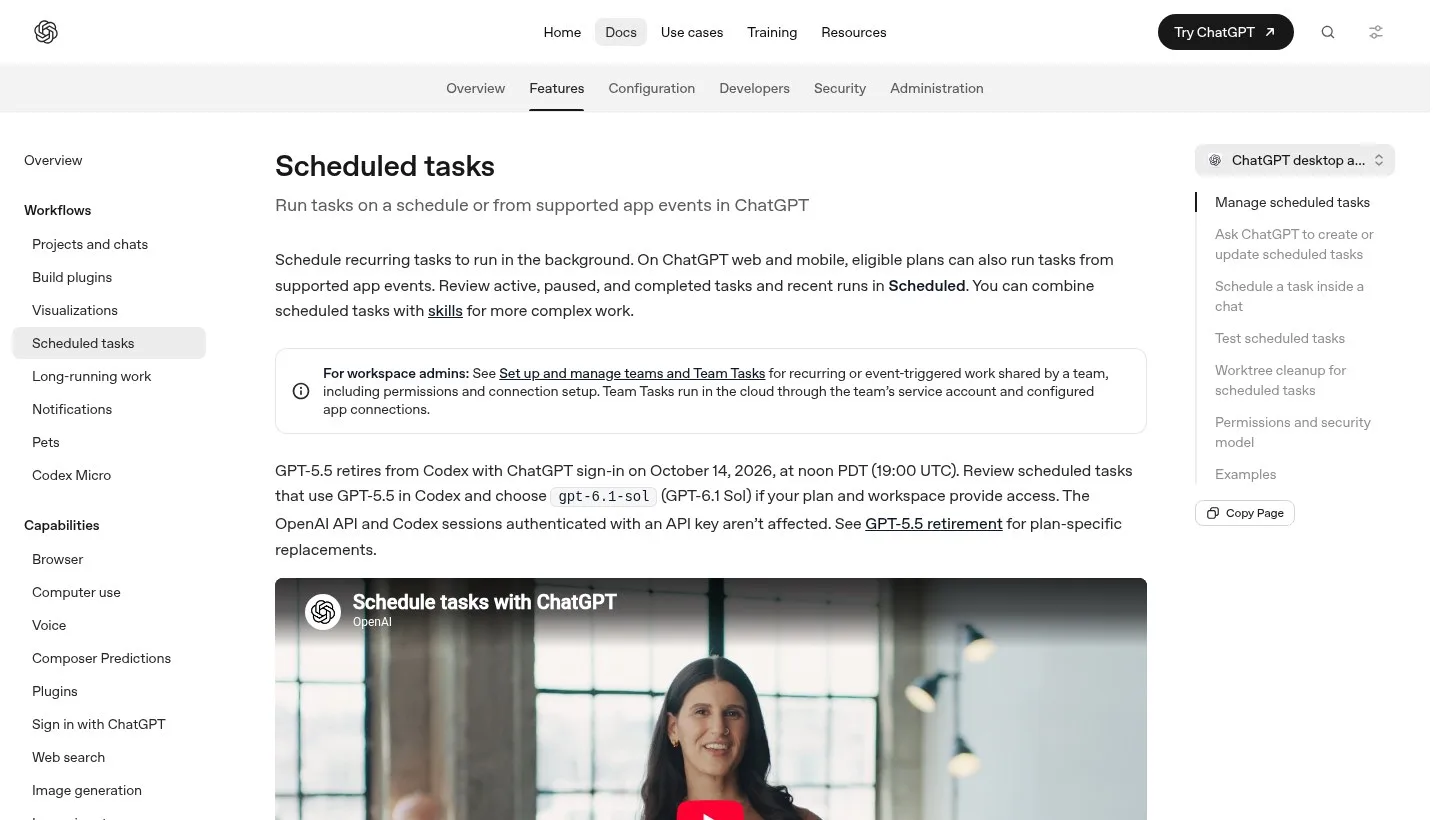
Screenshot of the Scheduled tasks page in OpenAI's official docs, November 2026.
What Are Codex Automations?
Codex automations are saved prompts that run on a schedule instead of waiting for you to type them. In 2026 the idea is simple: you define a task, you set a schedule, Codex runs it in the background while you're doing other things. As of November 2026 OpenAI's docs list them as scheduled tasks: runs with findings land in Scheduled, which acts as your inbox, and you can combine a task with skills for more complex work. If there is nothing worth reporting, the run stays quiet.
A lot about the job isn't actually that fun, and much of it can be automated away almost entirely.
You're wasting hours every week on tasks an AI agent could handle: reviewing pull requests, triaging bug reports, scanning CI failures. You sit there opening tabs, reading logs, doing the same thing again.
This is not the original Codex from years ago. OpenAI rebuilt Codex as a full autonomous coding agent: you give it a task and it works through it, reading files, writing code, running commands, often without you needing to be there.
That is the whole pitch. The most important thing right now for software developers is to learn to use AI and how to automate the things that they do every single day.
How to Set Up Codex Automations
Setting up Codex automations is a short loop: write the prompt, test it by hand, then put it on a schedule. As of November 2026 you create and manage scheduled tasks from the ChatGPT desktop app or ChatGPT on the web; the Codex CLI and the IDE extension can help you prepare and test a prompt first, but they don't show the Scheduled view. A task can run daily, weekly, or on a custom cadence.
- Write the prompt. Define a prompt and run it on a schedule that could be every five minutes, that could be daily, that could be weekly, depending on what the task is that you want to do.
- Test it first. Before you schedule an automation, test the prompt manually in a regular thread. First confirm the task is scoped correctly and the output is what you expect. Then move it into an automation.
- Pick the model and effort. You can set the model, define the reasoning level, and choose whether the automation runs locally or on a dedicated Git worktree.
- Start from a template. Use templates to get started faster, or start your automation from scratch and put it together by writing the prompts and deciding what you want to do.
- Review the runs. You review, you decide what to act on. Codex does the scanning.
The pairing that makes this click is skills plus a schedule. Skills are reusable bundles of instructions you or your team create.
Skills define the method. Automations define the schedule.
Once a workflow is dialed in as a skill, plug it into an automation and it runs itself.
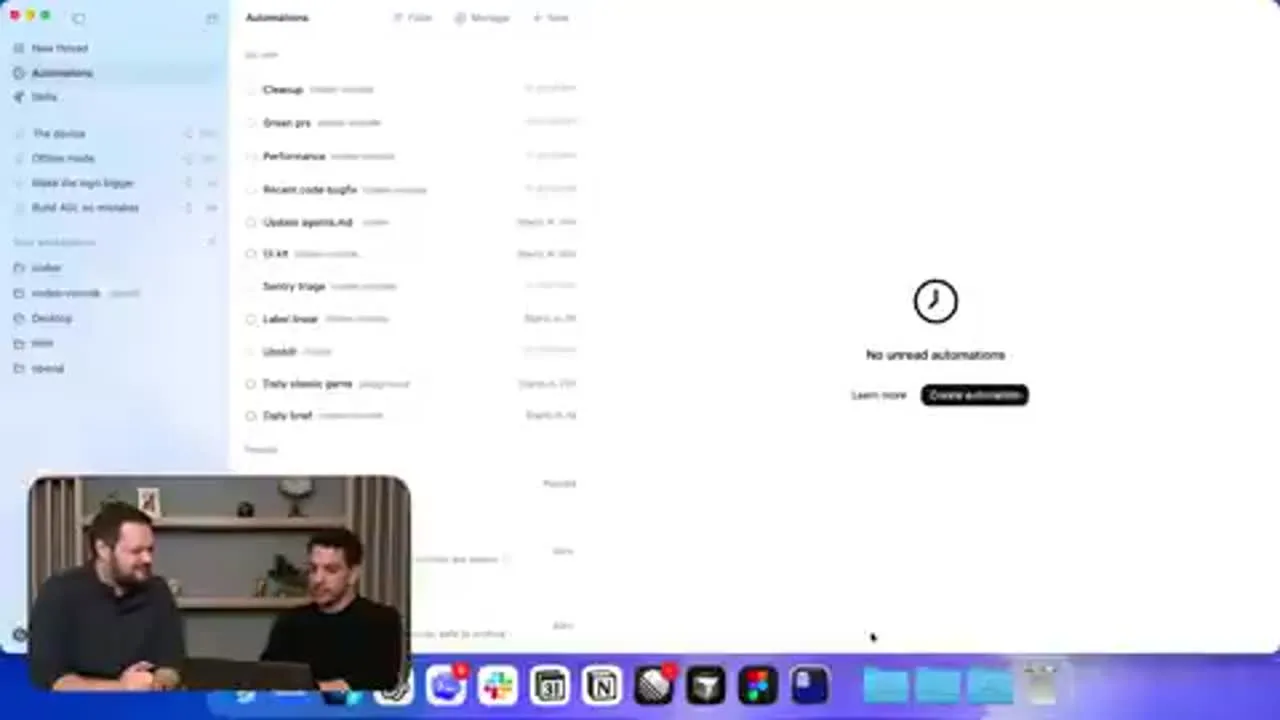
Frame from a Codex app demo showing the Automations tab (@minchoi on X).
8 Codex Automations Worth Running
The best Codex automations are boring, repeatable jobs with a result you can check in a minute. In early 2026 the examples shown most often fall into 3 groups: information digests, self-improvement for your agent setup, and cleanup work like failing CI or merge conflicts. Start with 1 or 2, read the runs for a week, then add more. Here are 8 that come up again and again.
1. Morning commit digest. Ask Codex to look at the last day of commits into a section of the repo and basically group them, tell you who worked on what, what got done, and what you need to know about. You open the app in the morning and sitting there is: here's what happened yesterday in the code base.
2. Daily release brief. The automation looks at commits from the last 24 hours, groups them by work stream, and produces a written briefing on what changed and who owns what, something that would take a human meaningful time every single day.
3. Daily issue triage. You set up an automation that runs every morning. Codex scans your open issues, groups them by theme, flags the critical ones, and produces a summary done before you even open your laptop.
4. CI failure summaries. Continuous integration tests fail. It happens. Instead of someone digging through logs manually, you set an automation to scan recent CI failures, identify patterns and produce a structured report.
5. Keep your PRs green. With between 10 and 20 PRs open at a time, a "green PRs" automation checks if you have any open PRs, asks whether any have CI failures, updates the base branch, and intelligently resolves merge conflicts by looking at what people have been trying to do. That's a very long way of saying your PRs are always green.
6. Fix the top error. On whatever schedule, whatever cadence, it picks off one of the top Sentry issues, like a performance regression or a crash, goes through the logs and everything Sentry has, looks at the code base and picks something to fix. Automations have memory, so it remembers what it tried to solve last time.
7. Upskill your agent overnight. An automation can look at the last day of skill usage and detect if Codex had any trouble with skills or if any of the scripts didn't work correctly, then make improvements to the skills.
You're going to sleep, you wake up, Codex is smarter in the morning.
A sibling job can update AGENTS.md every 6 hours: it looks at any disagreements or misunderstandings, or shorthands that Codex wasn't familiar with, and adds that so that next time things can just be quicker.
8. Docs, tests and dependencies. Teams have outdated documentation, missing test cases, and outdated libraries. A test coverage automation finds opportunities to increase test coverage and generates a PR with all of those missing tests; in one demo of a cloud automation tool the coverage went from 42 to 59. Another drafts weekly release notes from the latest PRs, and a dependency job finds any outdated dependencies and creates a pull request that you can later review and merge.
Codex automations also reach past code. With Notion as a knowledge base that provides state to Codex, a daily Codex summary goes over your previous day's chats and puts it into Notion, and a heartbeat automation proactively reaches out to your Notion task manager and looks for things to work on.
Local Project or Worktree?
Where a Codex automation runs is the main safety choice you make. As of November 2026 the docs give 2 options for Git repositories: run in your local project, or on a dedicated background worktree. A worktree keeps scheduled changes away from unfinished local work, while local mode can change files you are actively editing. Project-scoped tasks also need the computer on and the app running.
A work tree is an isolated copy of your repository. Automations running on a work tree keep their changes completely separate from the code you are actively working on. You can have Codex reviewing code while you're writing code. Same project, no conflicts.
Each task runs in its own thread with its own context, history and built-in terminal, so if a build fails, it can look at what happened and adjust. When it is done, you review the diff, you decide what to merge, and nothing touches your main branch until you say so.
The catch with anything local is uptime. A tool that runs locally only works when your computer is on, and it's hard to just manage and use that as part of a team. That is why cloud automations that run 24/7 are the direction people want.
Tips Before You Let Codex Run Alone
A good Codex automation is narrow, tested and easy to switch off. Scheduled tasks run unattended with your default sandbox settings, so in 2026 the docs advise starting with the narrowest access that lets the task succeed and granting network or broader file access only when required. Review the first 3 runs closely, then adjust the prompt, tools or cadence if the results are too broad.
- Ask one question per job. How can you set this up to help your team fix things that they otherwise won't have time to do manually?
- Batch your prompt ideas. Teams have outdated documentation, test cases that don't even pass, and outdated libraries. Those can all be automated, and you can set this up to run every single night or every single week or at whatever frequency you want.
- Disable or archive what you don't need. An archived automation will not run and you cannot trigger it manually.
- Keep a human in the loop. You review, you decide what to act on.
The pace here is fast. If you are not experimenting with this, you are going to be behind people who are.
Check Your Automation Plans With Pachat
Pachat is a web product at pachat.ai, described on the site as "Different personal AI agents, in one group chat." It helps to have a few AIs look over an automation prompt before you switch it on.
- Write down the automation: its schedule, its prompt, and whether it runs locally or on a worktree.
- Open pachat.ai and put your Claude, Grok Bot, Muse and ChatGPT dots in one group chat.
- Ask what could go wrong when it runs alone. They check each other's facts and argue it out, then you make the call.
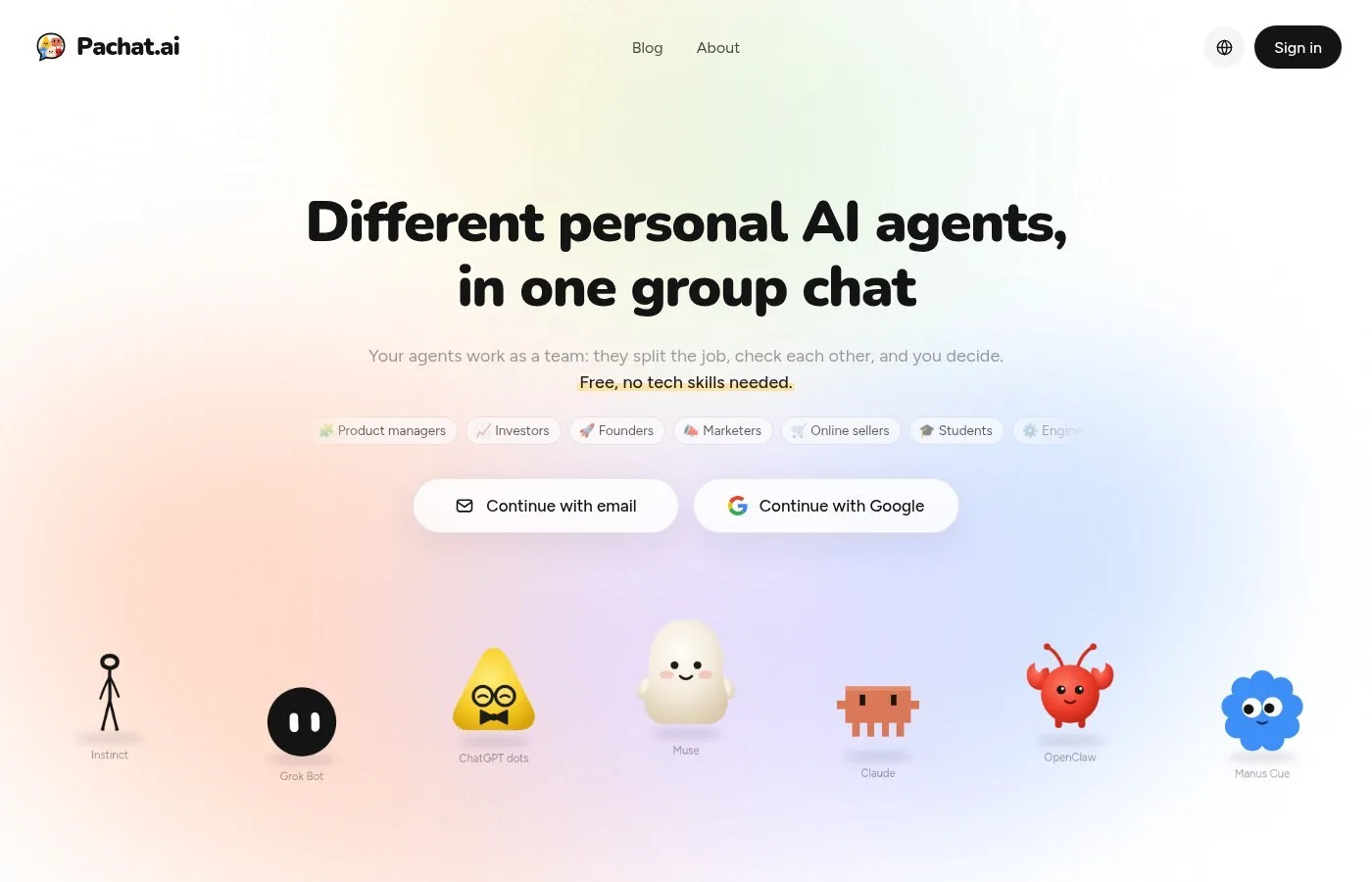
The pachat.ai home page.
For more, read how to use Codex, Codex multi-agent, Codex remote control and Claude Code routines.
FAQ
What are Codex automations called now?
As of November 2026, OpenAI's docs call them scheduled tasks. Early-2026 versions of the Codex app showed an Automations tab, and many people still use that name. You find all scheduled tasks and their runs under Scheduled in the ChatGPT desktop app sidebar, and runs that need your attention show an unread indicator. The idea is the same: a saved prompt that runs on a schedule.
Do Codex automations run when my computer is off?
Not for local projects. As of November 2026 the docs say project-scoped scheduled tasks need the machine powered on and the ChatGPT desktop app running, and the project must still be on disk. Scheduled tasks created on the web can use uploaded files and connected tools, but they can't work directly in a folder on your computer. Plan around that before you depend on a nightly job.
Can I use Codex automations from the CLI?
No. The Codex CLI and the IDE extension don't provide the Scheduled management interface, according to the 2026 docs. Use ChatGPT on the web or the desktop app to create and manage scheduled tasks. The CLI is still useful for preparing and testing a prompt, a skill or a script first, which is the step OpenAI recommends before you put anything on a schedule.
How do I set a custom schedule?
Presets cover common cadences like daily or weekly, and the custom schedule controls cover the rest. For an advanced schedule, the docs say you can edit the task's RFC 5545 recurrence rule, for example RRULE:FREQ=MONTHLY;BYMONTHDAY=1;BYHOUR=9;BYMINUTE=0 for 9 a.m. on the 1st of each month. Start with 1 daily run and only add more once the output is useful.
Can Codex automations be triggered by events?
Partly. As of November 2026, eligible plans can run scheduled tasks from supported Gmail, Slack or GitHub events, such as pull request activity in a repository. Those event triggers work in ChatGPT on the web and mobile, not in the desktop app, the Codex CLI or the IDE extension. One task can use several event triggers but can't mix them with a time-based schedule.
Can Pachat help me plan a Codex automation?
Yes. Pachat is a web product at pachat.ai where you put your Claude, Grok Bot, Muse and ChatGPT dots in one group chat. Paste your automation prompt and schedule, such as a 9 a.m. daily CI summary, and ask what could fail with no one watching. They check each other's facts and argue it out, then you make the call. Start at pachat.ai.
Ready to put different AIs in one group chat? Start at pachat.ai.
References
- Scheduled tasks, OpenAI / ChatGPT Learn (Codex app automations), fetched 2026-11-23
- @minchoi, X, 2026-02-03
- @ashebytes, X, 2026-02-03
- @JulianGoldieSEO, X, 2026-03-24
- @svpino, X, 2026-02-25
- @jonbeckman, X, 2026-05-30
- @sidpalas, X, 2026-06-10