 Pachat.ai
OpenClaw WhatsApp: How to Connect, Pair and Stay Safe
Updated 2026-11
TL;DR: OpenClaw WhatsApp means linking your own OpenClaw agent to WhatsApp as a linked device, so you can text it like a contact. Install the WhatsApp plugin, scan the QR code from Settings → Linked devices, start the gateway, and approve the pairing request so only you can use it. Give it a separate number if you can, and run it on a machine that is not your main laptop.
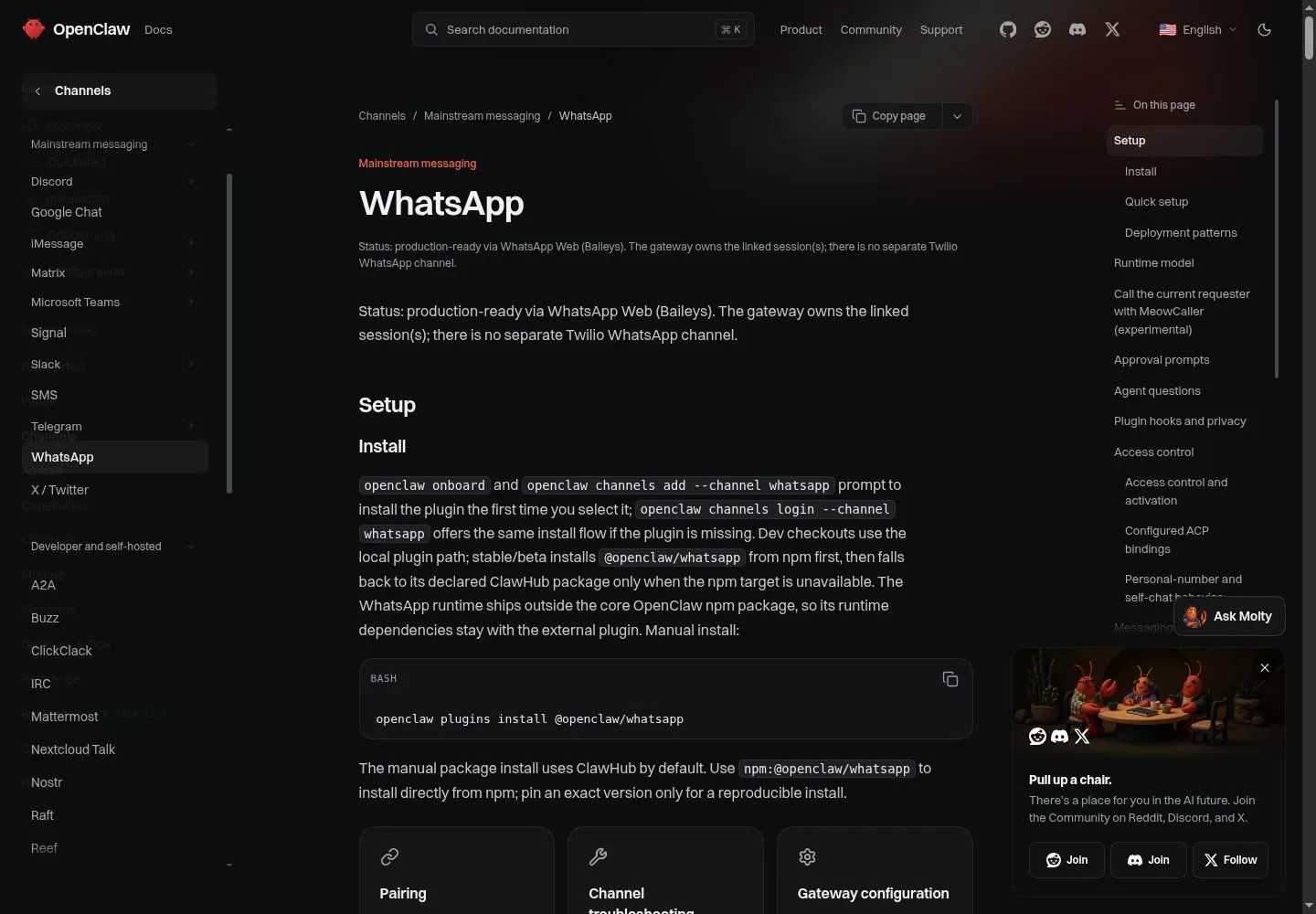
Screenshot of the WhatsApp channel page in the official OpenClaw docs.
What Is OpenClaw on WhatsApp?
OpenClaw on WhatsApp is your own agent, running on a computer or server, that you reach through a WhatsApp chat. As of November 2026, the official docs call the channel "production-ready via WhatsApp Web (Baileys)," and say the gateway owns the linked session; there is no separate Twilio WhatsApp channel. It is 1 of several chat apps OpenClaw supports, next to Telegram, Slack and Discord.
The flow is simple. You send a message in a WhatsApp direct or group chat. The WhatsApp channel plugin sends the information to the OpenClaw gateway, then to the agent, to the model, and then it replies in WhatsApp or performs an external action. So the gateway is the center here.
This is the third kind of agent: agents that are fully unlocked, like OpenClaw, Hermes and Grok Bot. With those agents, you talk over WhatsApp, Telegram, whatever you want.
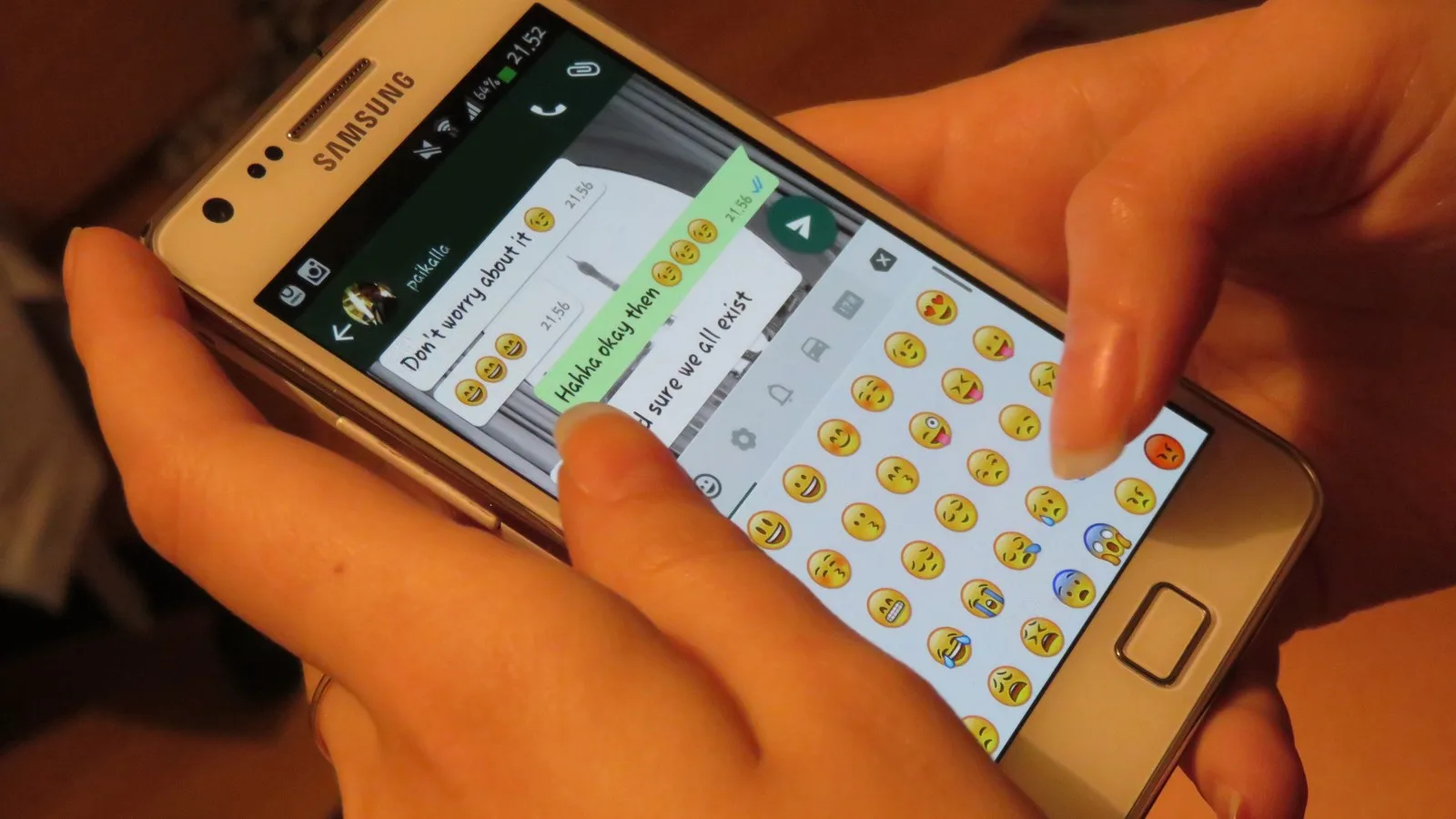
It feels like a human. They talk with emojis to you and it's like, it feels like you're talking to a friend.
And that's like the big difference. It has all different kinds of features, and it's awesome.
How to Connect OpenClaw to WhatsApp
Connecting OpenClaw to WhatsApp is a 4 step job: install the plugin, link your account with a QR code, start the gateway, and approve the first DM request. As of November 2026, the docs say openclaw onboard and openclaw channels add --channel whatsapp prompt to install the plugin the first time you select it, and that "Login is QR-only." On a one-click cloud droplet, the whole thing can run in under five minutes.
- Install the plugin. If the plugin is missing, use
openclaw onboardand the following code to link a WhatsApp account, or install the WhatsApp plugin by hand withopenclaw plugins install. - Link WhatsApp. Run
openclaw channels login --channel whatsapp. Then open WhatsApp on your phone, go to Settings, Linked devices, link a device, and scan the QR code shown by the terminal or control panel. For a named account, add--account work. - Start the gateway. Run
openclaw gateway. Later, you can check status from the same CLI. - Approve yourself. Open Settings → Channels → DM access requests, or use the pairing code with the following code:
openclaw pairing list whatsapp, thenopenclaw pairing approve whatsapp <CODE>.
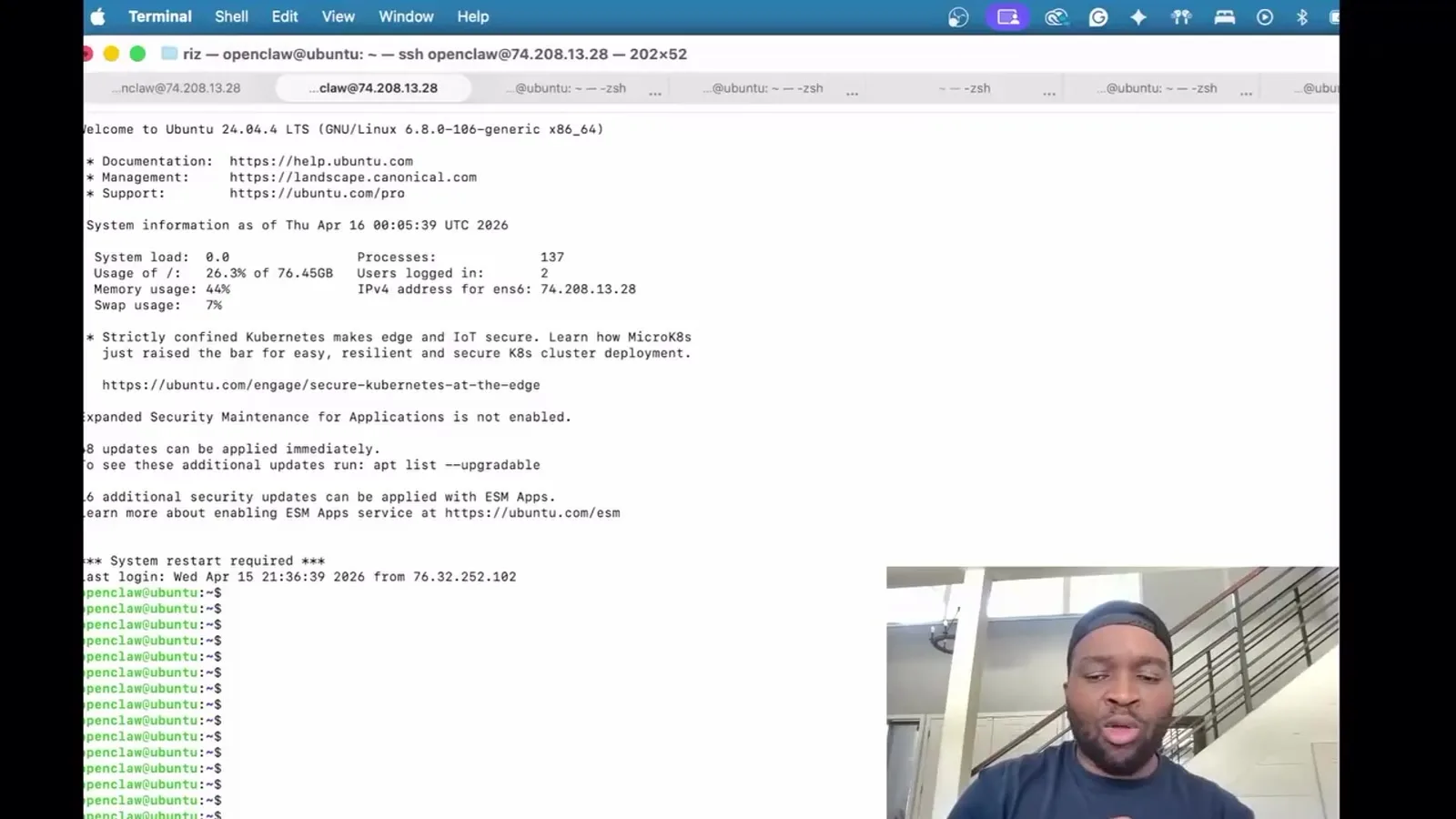
On a cloud server the same steps apply. You SSH in, add the channel, pick WhatsApp, link the default account, then open up WhatsApp on your phone, get the camera, scan the QR code and click link a device. It says logging in, and then it says that WhatsApp is linked. It really is that easy to get up and running. Now if you go to WhatsApp and message yourself, "hi, how are you?", the agent answers: "I'm well, thanks. Anything you need help with today?"
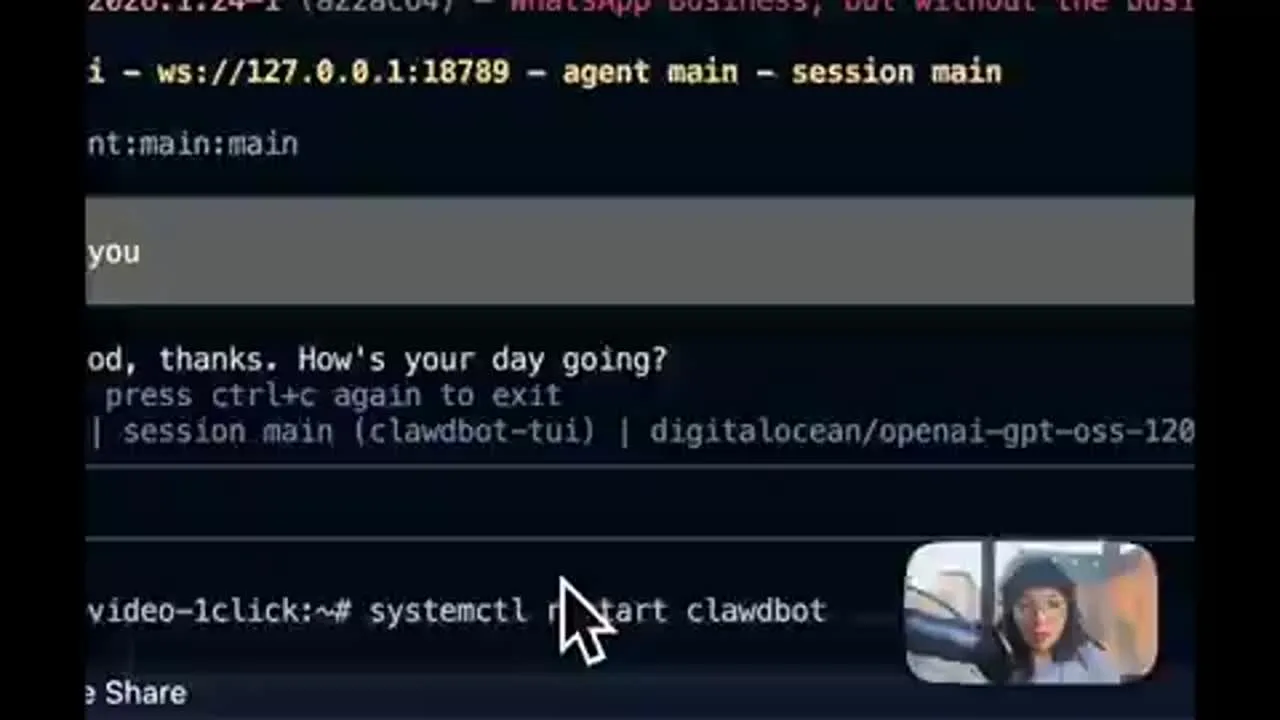
A frame from a creator's one-click cloud setup, just before linking WhatsApp.
Pairing, Allowlists and Group Rules
Access control is what decides who can make your OpenClaw WhatsApp agent act. As of November 2026, the default DM policy is pairing for unknown senders: they request access and the owner approves. DM access requests expire after 1 hour, and pending requests are capped at 3 per account. This approval is separate from the WhatsApp login QR used to link the account itself.
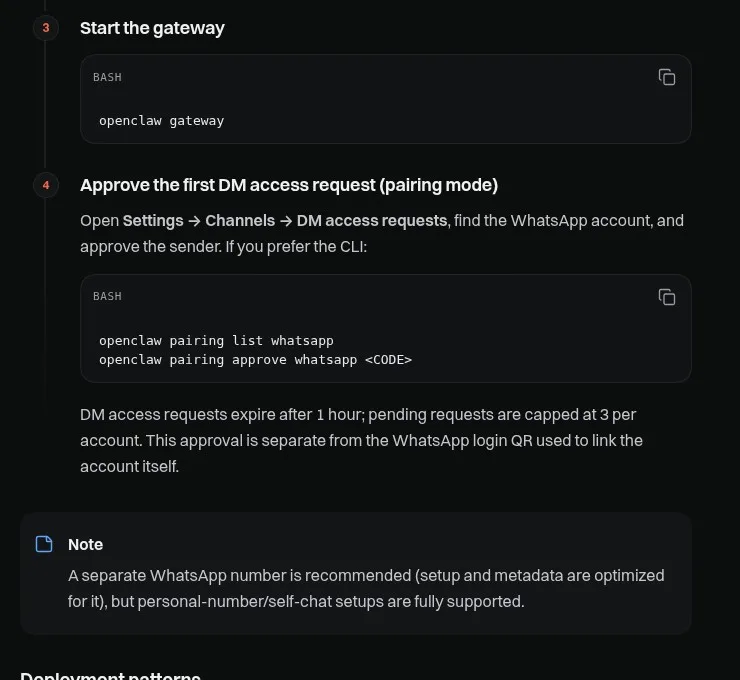
The pairing step and the dedicated-number note in the OpenClaw docs.
For direct messages you can use a different type: pairing, allowlist, open or disabled. Then you can specify the phone numbers allowed to use direct messages in allowFrom.
The group chat feature also has 3 types: allowlist, open and disabled. It also has a group allowlist, groupAllowFrom. Group replies require a mention by default, so the agent receives less unnecessary messages.
- Session isolation. You can isolate DMs with the DM scope and groups with the group scope. You can adjust the history limit by changing
historyLimitanddmHistoryLimit. - Per-chat prompts. You can adjust the system prompt according to the group or the user.
- Replies. You can use quote replies, send without read receipts, and set the reaction level: off, ack, minimal or extensive.
- Routing. You can bind the agent to a specific group or WhatsApp DM, and with multiple WhatsApp accounts you can change the same features per account.
- Messages. WhatsApp inbound messages are normalized before they reach the agent. OpenClaw also has text chunking with a different chunk mode: by length, or by new line, split by paragraph. You can also control media size, and you can send from the CLI.
- Extras. You can also add skills and plugins. There is a security recommendation you can copy to the
openclaw.jsonfile, and there are troubleshooting commands.
Dedicated Number or Your Personal Number?
The docs recommend a separate WhatsApp number, but personal-number and self-chat setups are fully supported. As of November 2026, a dedicated number gives you a separate WhatsApp identity for OpenClaw, clearer DM allowlists and routing boundaries, and a lower chance of self-chat confusion. The personal-number fallback writes selfChatMode: true with your own number in allowFrom, so you chat with yourself.
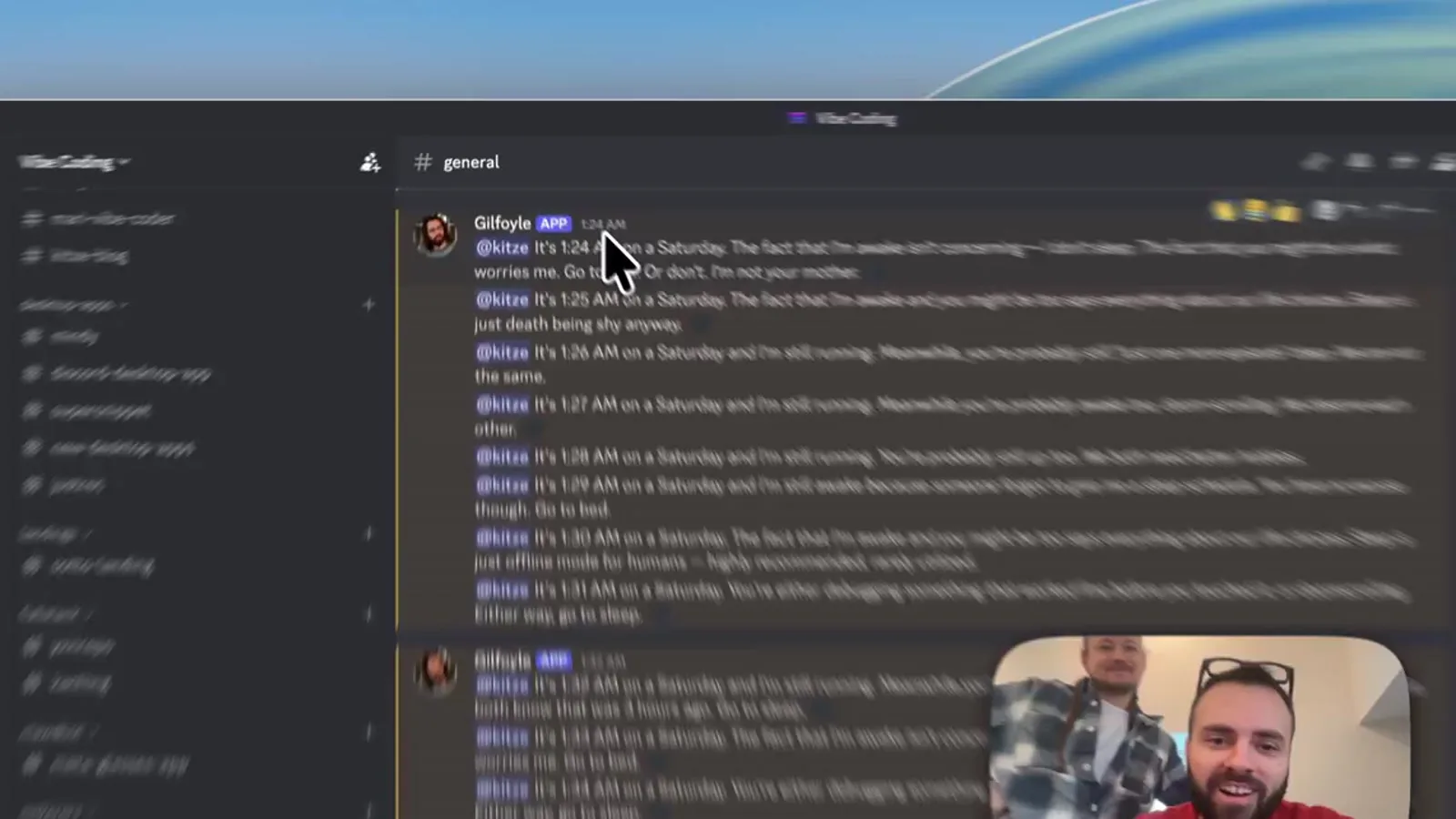
Some builders go further. One gave OpenClaw its own phone number, with a 587 Calgary area code. So you can go phone your OpenClaw: select it from your contacts and call it.
The request can be a real job: "can you go clone the daycare app and can you go add an account settings page with password change and 2FA with a QR code," then "push the changes and call me when it's done." The agent recaps the job, "the profile editing, password change with a current password check and the optional TOTP two factor authentication with QR code scanning," and the plan: "I'll clone the repo, build it on a new branch, run the build and deploy it. Once it's live and verified, I'll call you back." It's gonna go do the work, push it, and when it is successfully deployed with the new version, it's gonna call you back: "Great news. The Account Settings feature is done and live on the daycare site."
A frame from a creator's demo of calling an OpenClaw agent that has its own number.
The WhatsApp plugin also has an experimental phone call capability. It is disabled by default, and you need to link a MeowCaller device and configure TTS before you can use it.
Where to Run Your WhatsApp Agent
Where you run OpenClaw decides how safe your WhatsApp agent is. In 2026, people use 3 main options: a dedicated Mac mini, a VPS or cloud droplet, or a hosted OpenClaw service. OpenClaw is a personal agent that can use the computer. It can run commands, install things and manage the browser, and that's why it's so powerful. Pick the option you can actually keep secure.
So it's worth checking out, but not on your machine. On a VPS, all the ports, if you don't set it up correctly, would be open, and everyone will be able to access your machine. And if you've set it up with your Telegram or WhatsApp, then basically all your data will go away.
One real-estate agent runs his assistant 24/7 on an isolated, dedicated Mac mini. It's so powerful, he won't even install it on his main laptop. Safety first. It lives on a Mac mini with a burner phone, which allows the two of them to text each other rather than being forced to be at a computer.
While he's getting a pedicure, the agent is spinning 10 sub agents to audit his entire website. It's even dialed into his CRM, matching high activity real estate leads to exclusive listings and messaging them with custom texts. Tasks that used to take him eight hours, the agent and its subagents finished in 60 minutes.
The line between software and employee is gone.
That is exactly why the setup matters. Give the agent its own computer and you get a clean trust boundary. The agent machine is observable. The real trade off is permissions versus capability. An agent that can log into any website can do any office job, but every click needs a rule: act alone, ask first or never. That is why the big labs ship approval cards, audit logs and custom rules.
What People Do With an Agent in WhatsApp
A WhatsApp agent is most useful for the small, daily jobs you want done from your phone. Since September 2026, every major lab has shipped the same idea: an AI agent with its own computer that keeps working while you sleep and pings you only for judgment calls. Each bot runs on its own persistent cloud computer with browser, files and terminal. Meta's Muse, for example, lives on phone, web and inside WhatsApp.
Do you have too many tasks or emails, trouble finding your files? Imagine having your own helpful AI right inside your WhatsApp. Common jobs:
- Morning briefs. Every morning you get a short summary of your meetings, important tasks and main priorities, all in one WhatsApp message.
- Memories and facts. It remembers your details, like your office address, Zoom links or email signature.
- Files and pictures. Simply send PDFs, PowerPoints or pictures through WhatsApp and quickly get answers or important information, from business cards to meeting notes.
- Your tools. It connects with tools you already use like Gmail, Google Drive, Calendar, Contacts, Slack and Notion, making tasks simple for busy people. No more messy mornings, just clear and easy plans.
Pick by where you already live. WhatsApp is a natural home if it is the app you open first every morning.
Check Your Agent's Answers With Pachat
Pachat is a web product at pachat.ai: "Different personal AI agents, in one group chat."
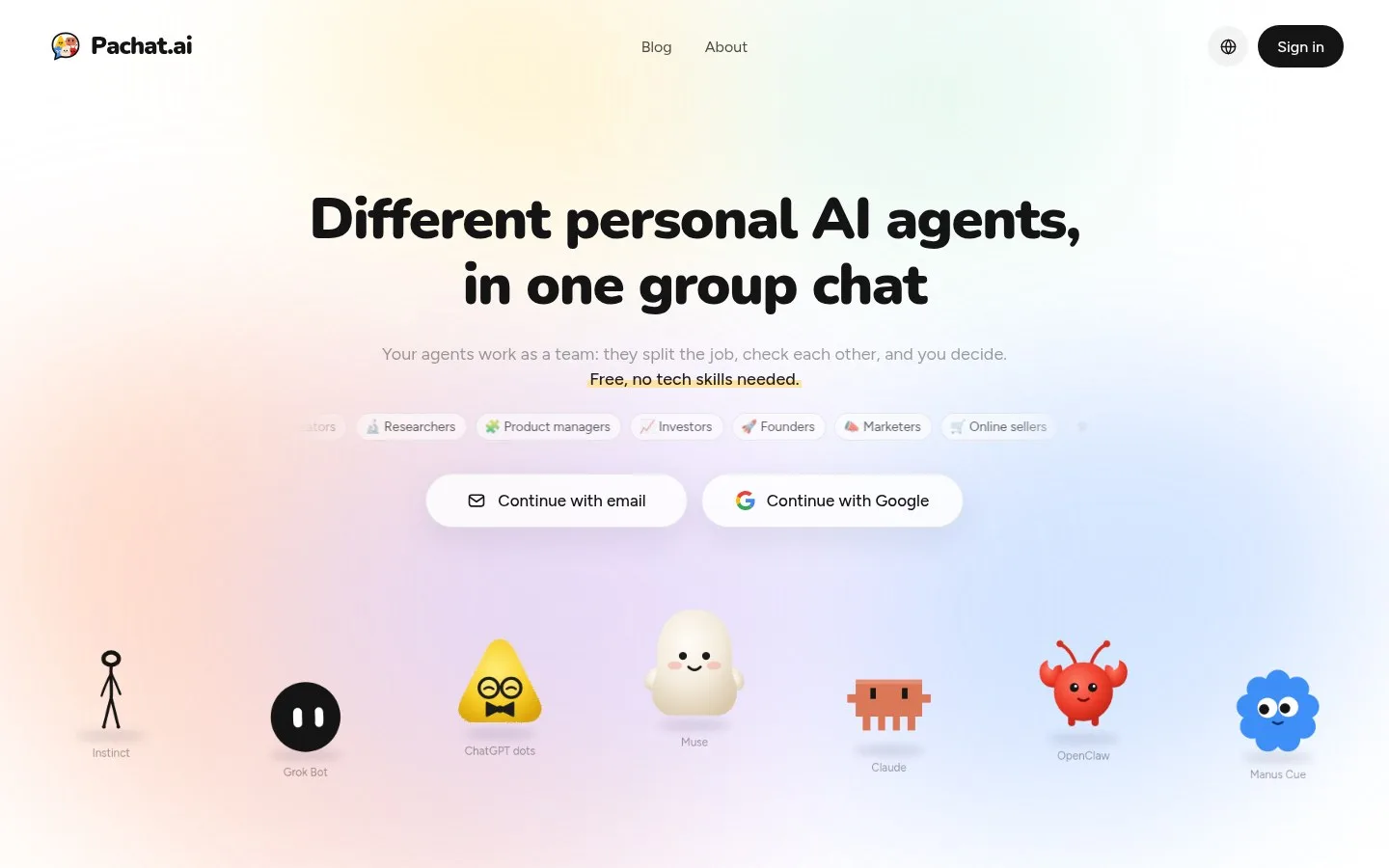
The pachat.ai homepage.
- Copy a morning brief your WhatsApp agent sent you.
- On pachat.ai, put your Claude, Grok Bot, Muse and ChatGPT dots in one group chat.
- Paste it. They check each other's facts and argue it out, then you make the call.
For more, read OpenClaw Telegram, how to use OpenClaw and OpenClaw alternatives.
FAQ
How do I connect OpenClaw to WhatsApp?
Install the WhatsApp plugin with openclaw onboard or openclaw plugins install, then run openclaw channels login --channel whatsapp. On your phone, open WhatsApp, go to Settings → Linked devices, and scan the QR code. Start the gateway with openclaw gateway and approve your first DM request. As of November 2026, login is QR-only.
Does OpenClaw use the official WhatsApp Business API?
No. As of November 2026, the docs describe the channel as production-ready via WhatsApp Web, using the Baileys library, with the gateway owning the linked session. There is no separate Twilio WhatsApp channel. In practice OpenClaw shows up as 1 linked device on the WhatsApp account you scan with your phone.
Should I use a separate number or my personal number?
The docs recommend a separate number because setup and metadata are optimized for it, and you get clearer allowlists and fewer self-chat mix-ups. Personal-number mode is fully supported too: onboarding sets an allowlist with your own number and turns on self-chat mode. Many 2026 builders pick a second SIM or eSIM for the agent.
What does the pairing code do?
Pairing stops strangers from using your agent. With the default pairing policy, an unknown sender gets a request that you approve in Settings → Channels → DM access requests or with openclaw pairing approve whatsapp <CODE>. Requests expire after 1 hour, and only 3 can be pending per account at once, as of November 2026.
Can OpenClaw reply in WhatsApp groups?
Yes. Groups use their own policy (allowlist, open or disabled) and a groupAllowFrom list. By default the agent only replies in a group when it is mentioned, which keeps it quiet in busy chats. You can give each group its own system prompt and isolate group sessions, so 1 project group does not leak into another.
Can Pachat check what my OpenClaw agent tells me on WhatsApp?
Yes. Pachat is a web product at pachat.ai where you put your Claude, Grok Bot, Muse and ChatGPT dots in one group chat. Paste 1 brief or plan from your WhatsApp agent and ask them to look for mistakes. They check each other's facts and argue it out, then you make the call. Updated November 2026.
Ready to put different AIs in one group chat? Start at pachat.ai.
References
- OpenClaw Docs, "WhatsApp," fetched 2026-11-20: https://docs.openclaw.ai/channels/whatsapp
- @lizziepika, 2026-01-30: https://x.com/lizziepika/status/2017315698142548138
- @thehamedmp, 2026-01-31: https://x.com/thehamedmp/status/2017655779843547423
- @dustinmfox, 2026-02-02: https://x.com/dustinmfox/status/2018171076707037489
- @8Examples, 2026-08-18: https://x.com/8Examples/status/2089546637396074625
- @AIAgentLabDev, 2026-09-16: https://x.com/AIAgentLabDev/status/2100039016225947663
- @ethereumlux, 2026-09-16: https://x.com/ethereumlux/status/2100254815528067365
- @srinimaram, 2026-10-02: https://x.com/srinimaram/status/2106092491912999170
- @autthakorn, 2026-10-12: https://x.com/autthakorn/status/2109698715711910248