 Pachat.ai
Claude Code Remote Control: How to Set It Up and Use It
Updated 2026-11
TL;DR: Claude Code Remote Control lets you continue a Claude Code session that is already running on your own computer from your phone, tablet or any browser. Start it with one command, open the URL or scan the QR code, and your machine keeps doing all the work. It stays alive only while the terminal process keeps running.
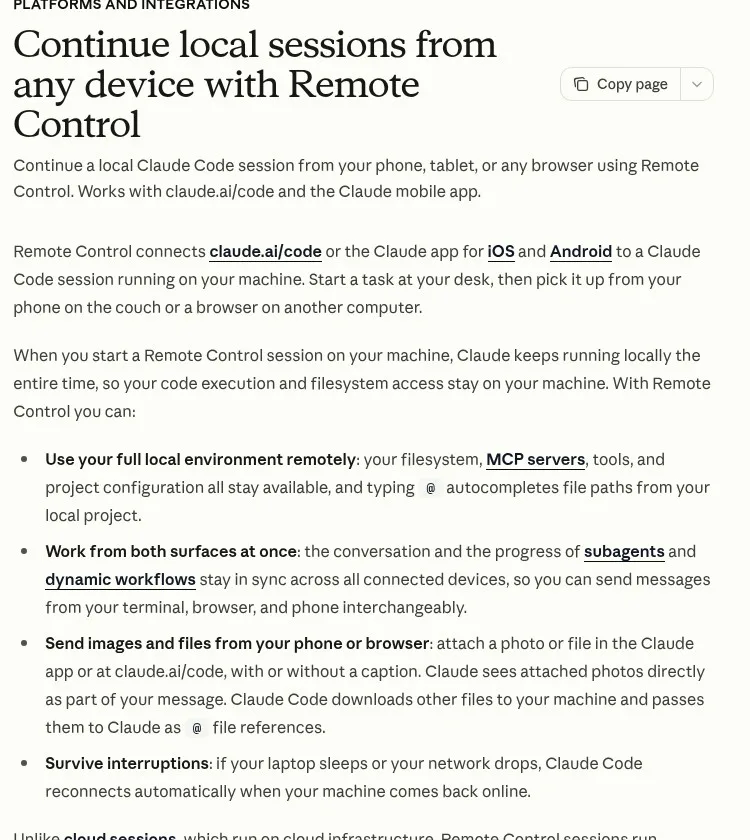
Screenshot of the official Claude Code docs page on Remote Control.
What Is Claude Code Remote Control?
Claude Code Remote Control is a feature that connects your phone, tablet or browser to a Claude Code session running on your own machine. It arrived as a research preview in February 2026, and in November 2026 the official docs list 5 plans that can use it: Pro, Max, Ultra, Team and Enterprise. It lets you connect your phone, tablet or any browser to a Claude code session already running on your machine. You start a task on your computer, then pick it up from your phone, from the couch, from another room, from anywhere.
Did you know that you can now run Claude Code on your tablet and on your phone?
Until now, you had to stay at your desk for the whole session. If you stepped away, you either babysit it remotely through clunky SSH setups or just let it sit there waiting. Remote control fixes that.
The phone or browser is just a window into that local session.
Your machine is still the one doing all the work.
Why Claude Code Remote Control Matters
The point of Remote Control is simple: you are no longer chained to your desk. Before the late February 2026 launch, a long coding job meant waiting beside the terminal for the whole run, and the first of 3 pain points was exactly that. Every time you walk away, your AI session dies. Every time you leave the room, you lose your flow.
Every time you kick off a big AI coding task, you have to sit there and babysit it.
You can't walk away. You can't take a break. Before this shipped, developers were stitching together Tailscale, Termius, Termux, tmux and custom web socket bridges just to get something close to this experience. And even then, the mobile experience was rough. Terminals aren't built for phones.
Remote control your AI from your phone.
Remote control builds a proper interface directly into the Claude app with all your local tools and MCP servers still available.
How to Set Up Claude Code Remote Control
Setting up Claude Code Remote Control is a 4-step job once Claude Code is installed. As of November 2026 the official docs describe three ways to start a session, and each one ends in the same place: a session you can reach from the Claude app or a browser. It's genuinely simple. When online, everything stays in sync across all connected devices in real time.
- Update Claude Code and open your terminal in your project folder. You need to have run Claude in your project directory at least once to accept the Workspace Trust dialog.
- Start Remote Control. Run
claude remote-control(short form:claude rc) to start a server session, runclaude --remote-controlfor a normal interactive session, or type/remote-controlinside a session you already have open. - Your terminal displays a session URL and a QR code. Press spacebar to toggle the QR code on and off.
- To connect from another device, you can open the session URL in any browser, scan the QR code in the Claude app, or find the session by name in the session list. Remote sessions show a computer icon with a green dot.
If you're already mid session and want to hand it off, the slash command carries over your entire conversation history. You don't lose context. You just continue from wherever you left off.
You just have to copy and paste that URL either in your phone or your tablet.
It's as simple as that.
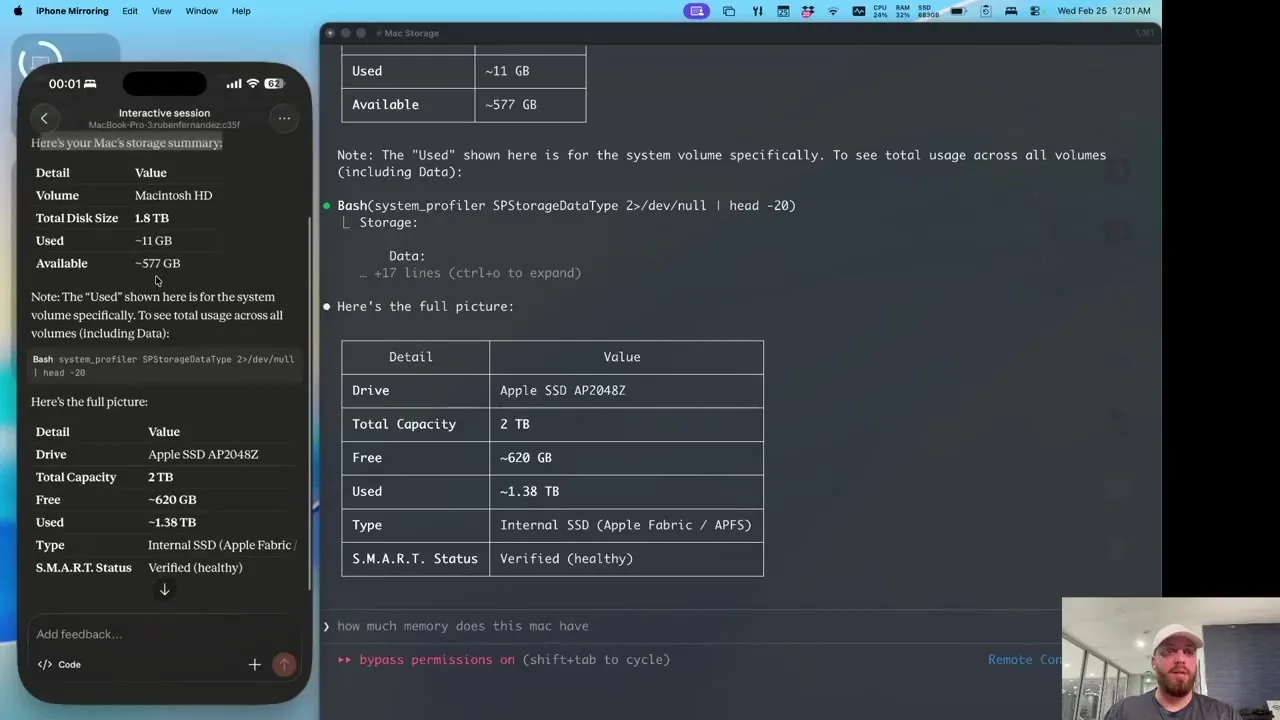
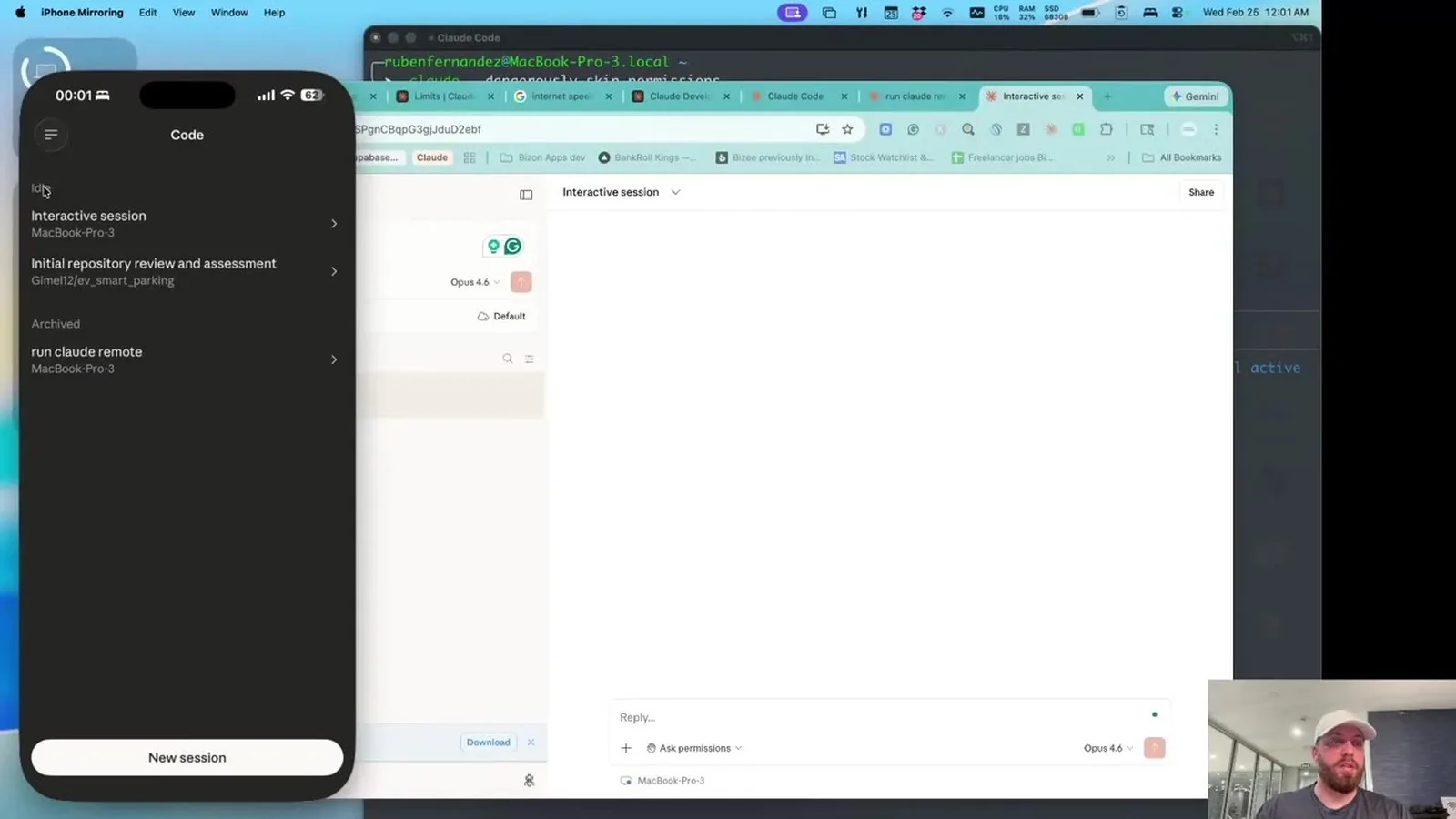
Frame from a demo: a phone showing the same local session as the terminal.
Turn On Claude Code Remote Control for Every Session
Turning Remote Control on for every session is a 1-step setting, and it saves you from typing a command each time. As of November 2026 the setting is called Enable Remote Control for all sessions, and it lives in the config menu of Claude Code. By default, remote control only turns on when you ask for it. You have to run one of those commands each time, but you can flip it on for everything.
Inside Claude Code, run /config and set Enable Remote Control for all sessions. Turn it on once and every session registers itself ready to pick up from anywhere.
Notifications make it more useful when you actually walk away. When remote control is active, Claude can push notifications to your phone. It decides when to send one, usually when a long task finishes or when it needs a decision from you to keep going. You can also ask for one in your prompt, something like "notify me when the tests finish."
Claude Code Remote Control Security
Remote Control keeps execution on your own computer, and its traffic is limited to outbound HTTPS requests. Anthropic's docs in November 2026 say the local session never opens inbound ports on your machine, so there are 0 inbound ports to manage. That's different from Claude Code on the web where the session runs on cloud servers. And here's the important part on security, your files never leave your machine.
Claude code keeps running locally the entire time. Your file system, MCP servers, tools, and project config all stay on your computer.
Only the chat messages and tool results flow through an encrypted connection. This is not like spinning up a cloud environment.
Your local session only makes outbound requests. It never opens inbound ports on your computer. It registers with the Anthropic API, then polls for work. Traffic goes over TLS the same as any other Claude code session using short lived credentials that each expire on their own while you're connected.
Your code never leaves your machine. This is not a cloud migration.
Limits to Know Before You Rely on It
Remote Control has 4 limits worth knowing, and all of them follow from the fact that your computer is the one running the session. According to the docs in November 2026, your computer must stay on and the claude process must keep running. Remote control runs as a local process. So this is not designed for running fully unattended agents overnight. It's about giving you mobility around an active session.
- Each Claude code instance handles one remote session at a time outside of server mode.
- The terminal process must stay running.
- If you close the terminal, quit VS code or kill the Claude process, your session goes offline within seconds.
- If your laptop sleeps or your network drops briefly, the session reconnects automatically. After a longer outage, roughly 10 minutes, Claude Code gives up and the process exits.
Some commands are local only, like /plugin and /resume, so those stay in the terminal. Plenty still work from your phone, though. If you're running it on a remote machine over SSH, start it inside tmux or screen so it survives you disconnecting.
It also won't run if you're pointed at Bedrock, Google Cloud's Agent platform, or Microsoft Foundry. API keys don't work here; you sign in through claude.ai.
Real Ways to Use It From Your Phone
The best fit for Remote Control is any task that takes a while and still needs a human decision now and then. Since the February 2026 launch, 3 kinds of jobs fit best: a refactor, a batch job and a long multi step automation. Think about any long running task refactoring a large code base, batch file operations, multi step automations.
If you're deep in Claude Code, you can just continue working on your phone and when you come back, it's going to be on your desktop.
With remote control, you kick it off at your desk, walk away and check in from your phone when you need to. You see what Claude has done. Send a message to adjust direction, and it keeps going while your machine does all the work.
You start a big refactor at your desk. Claude gets to work. You grab your phone, walk to the kitchen, make coffee, come back, and you can see everything Claude is doing in real time on your phone. You can ask a follow up question from your couch, you can check on the progress from a meeting, you can send a new command from anywhere without restarting anything.
That URL you can open on the browser and you can talk to Claude through any browser on any location, or you can open the Claude application on your phone
So basically that's all running on the computer and it's gonna get back to you. You can use the Claude app. You don't have to use terminal.
Frame from a short demo of Claude Code Remote Control on a phone.
Who Can Use Claude Code Remote Control
Remote Control is available to paid Claude plans, and the list has grown since the first release in February 2026. In November 2026 the docs name 5 plans, Pro, Max, Ultra, Team and Enterprise, and API keys are not supported. On Team and Enterprise, an Owner must first enable the Remote Control toggle in Claude Code admin settings. You sign in through claude.ai, and the sign-in decides whether the feature is available to you.
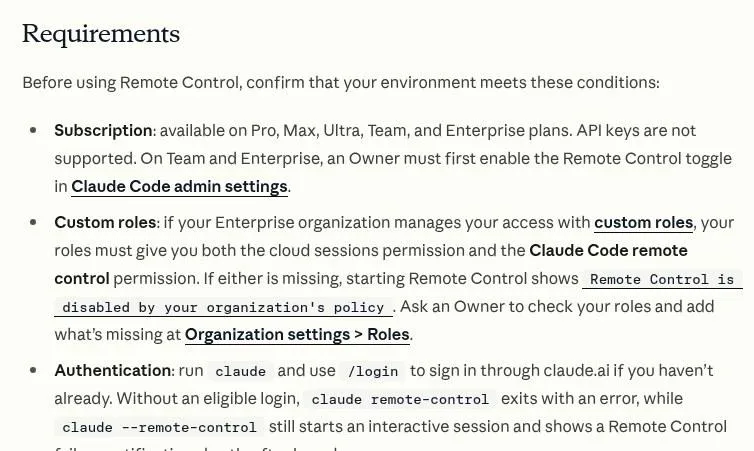
Screenshot of the Requirements section in the official Claude Code docs.
Use Claude Code Remote Control With Pachat
Remote Control keeps one Claude Code session in your pocket, and Pachat is where you can put other AIs next to it. Pachat is a web product at pachat.ai, described on the site as "Different personal AI agents, in one group chat."
- Start your Claude Code session and hand it off with
/remote-control, so you can follow it from your phone. - Open pachat.ai and put your Claude, Grok Bot, Muse and ChatGPT dots in one group chat.
- Ask the group about the plan or the result you are looking at. They check each other's facts and argue it out, then you make the call.
To see how Claude Code is described next to other agents, read the Claude Code agent page, the Codex and Claude Code use case and the guide to your first Claude Code task.
FAQ
What is Claude Code Remote Control?
Claude Code Remote Control is a feature that lets you connect the Claude app on iOS and Android, or claude.ai/code, to a Claude Code session that is already running on your own computer. It arrived as a research preview in February 2026. Your files, tools and MCP servers stay local, and the phone or browser is a window into that session, so you can keep working from another room or another device.
How do I start Claude Code Remote Control?
Open your terminal in a project folder you have already trusted and run claude remote-control, or run claude --remote-control for a normal interactive session. Inside a session that is already open, type /remote-control. In November 2026 the docs list these 3 starting points. The terminal shows a session URL, and you can press spacebar to show a QR code and scan it with the Claude app.
Which plans support Claude Code Remote Control?
The official docs in November 2026 list 5 plans: Pro, Max, Ultra, Team and Enterprise. API keys are not supported, so you sign in through claude.ai with /login. On Team and Enterprise plans, an Owner must first enable the Remote Control toggle in Claude Code admin settings. Early walkthroughs from February and March 2026 describe a Max-only preview, but that is out of date.
Does my code leave my computer when I use Remote Control?
No. Claude Code keeps running locally the entire time, so your file system, MCP servers, tools and project config stay on your computer. The session makes outbound HTTPS requests only and never opens inbound ports. Chat messages and tool results flow through an encrypted connection, so the phone or browser acts as a window, not a copy of your project. That has been the design since the first release in 2026.
What happens if my laptop sleeps or the network drops?
If your laptop sleeps or your network drops briefly, the session reconnects automatically when the machine wakes or the network returns. If the outage lasts roughly 10 minutes, Claude Code gives up and the process exits, and if you close the terminal the session goes offline within seconds. For server mode you can bring sessions back for about 4 hours after you stop it, as of the November 2026 docs.
Can I turn on Remote Control for every session?
Yes. Run /config inside Claude Code and set Enable Remote Control for all sessions to true. In the desktop app the same switch sits under settings, and in the VS Code extension it is in the settings section of the command menu. With this setting on, each interactive Claude Code process registers 1 remote session, so you no longer need to type a command before every walk away.
Does Pachat replace Claude Code Remote Control?
No, they do different jobs. Remote Control lets you continue one Claude Code session from your phone. Pachat is a web product where you put your Claude, Grok Bot, Muse and ChatGPT dots in one group chat, and they check each other's facts and argue it out, then you make the call. You can use both in 2026: follow a session from your phone, then take the result to pachat.ai.
Ready to put different AIs in one group chat? Start at pachat.ai.
References
- Claude Code Docs, "Continue local sessions from any device with Remote Control," fetched 2026-11-18: https://code.claude.com/docs/en/remote-control
- @TopClickMediaSA, 2026-03-02: https://x.com/TopClickMediaSA/status/2028449623308689595
- @ProfitBoardroom, 2026-03-02: https://x.com/ProfitBoardroom/status/2028557767150338127
- @kamilbanc, 2026-02-24: https://x.com/kamilbanc/status/2026439009816477904
- @nexgen_ruben, 2026-10-13: https://x.com/nexgen_ruben/status/2110098252989399443
- @JulianGoldieSEO, 2026-03-21: https://x.com/JulianGoldieSEO/status/2035334974878912845
- @JulianGoldieSEO, 2026-08-26: https://x.com/JulianGoldieSEO/status/2092514885619909023