 Pachat.ai
Claude Cowork Dispatch: How to Text Your Desktop Agent
Updated 2026-11
TL;DR: Claude Cowork Dispatch is one persistent conversation with Claude that runs on your computer, and you message it from your phone. You turn it on in Claude Desktop, pair the Claude mobile app, keep the computer awake, and come back to finished work. As of November 2026 it is in limited beta on some Pro, Max and Ultra plans.
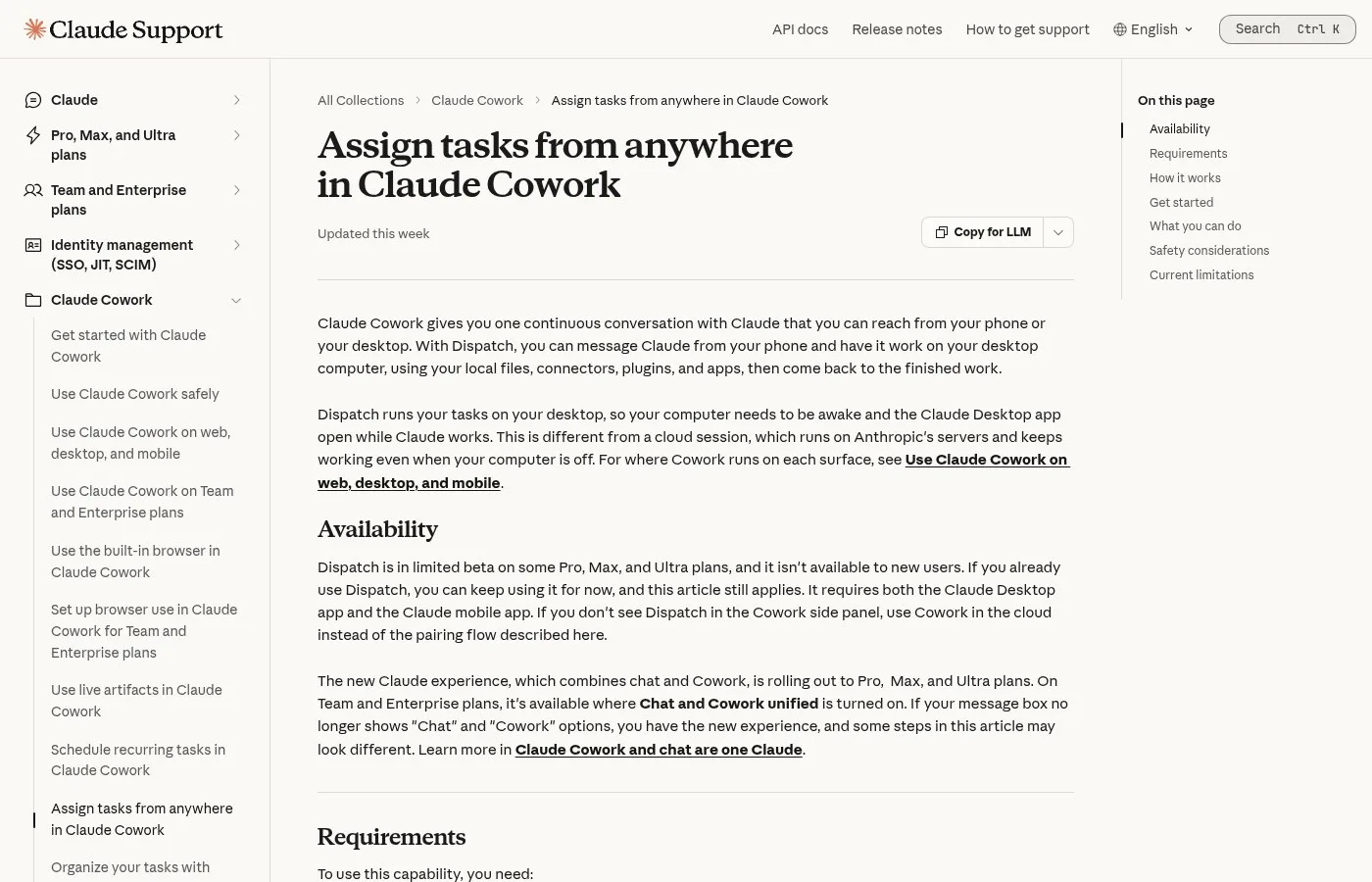
Screenshot of the Claude help center article on Dispatch.
What Is Claude Cowork Dispatch?
Claude Cowork Dispatch is a feature that lets you send a task from your phone to the Claude agent working on your desktop computer. Anthropic shipped it as a research preview around March 18, 2026. As of November 2026 the help center says Claude then works on your computer with your local files, connectors, plugins and apps, as long as the computer is awake and Claude Desktop is open. It is not a cloud session. The work happens on your own machine.
Anthropic is shipping a new feature in Claude Cowork as a research preview called Dispatch.
One persistent conversation with Claude that runs on your computer. Message it from your phone, come back to finished work.
Anthropic dropped a feature that most people scrolled right past called Dispatch, a new research preview inside Claude Cowork that lets you text your desktop AI agent from your phone.
You can now send a message from your phone and Claude Cowork running on your computer will execute the task and have the finished work waiting for you when you get back to your computer.
How Dispatch Differs From Remote Control
Dispatch is the Cowork answer to working away from your desk, and it differs from Claude Code Remote Control in when the task starts. Remote Control, released in early 2026, connects your phone to a coding session that is already open in a terminal. Dispatch lets you start a brand new task from the phone. The Claude docs also say Dispatch can hand a job to a Cowork session or a Claude Code session.
They did recently release Remote Control, but that was only for Claude Code and you had to activate it in an already existing terminal, so you had to start the task beforehand.
But now as long as your computer is turned on, if you're outside of the house, you can just open the Claude app on your phone, start a new task and it automatically does it on your computer.
And once you get home, you will have that work finished. It means that you can have your remote office, home office on the beach. You can just chat with Claude on your phone and have it do tasks for you on your computer.
How to Set Up Claude Cowork Dispatch
Setting up Dispatch is a pairing step between Claude Desktop and the Claude mobile app. The help center in November 2026 says you need the latest version of both apps, and your computer has to stay awake with Claude Desktop open. Computer use is a separate switch in the desktop settings, and you turn it on if you want Claude to click through your apps for you.
Here's how Claude Dispatch works.
- In Claude Cowork, go to settings, capabilities and turn on enable computer use.
- Go to settings, Cowork and turn on Dispatch.
- Download the Claude mobile app.
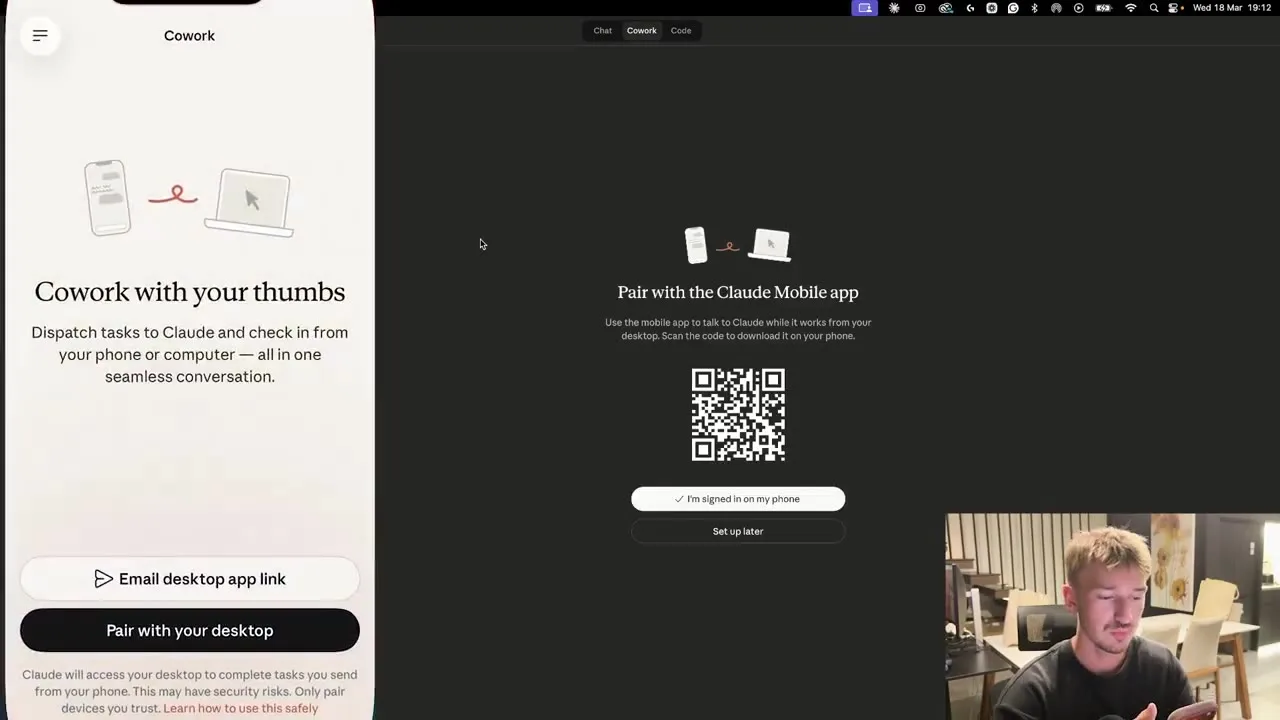
- Select Dispatch in the Cowork sidebar and scan the QR code to pair your phone.
- From your phone, select Dispatch, then type your task.
On your computer, you need to click get started. Then it says pair with Claude mobile app. On the phone, you have the Dispatch section right here. Click pair with your desktop.
You can give it certain permissions. You can just allow all of this, including this keep a computer awake feature which prevents it from sleeping while Dispatch is running.
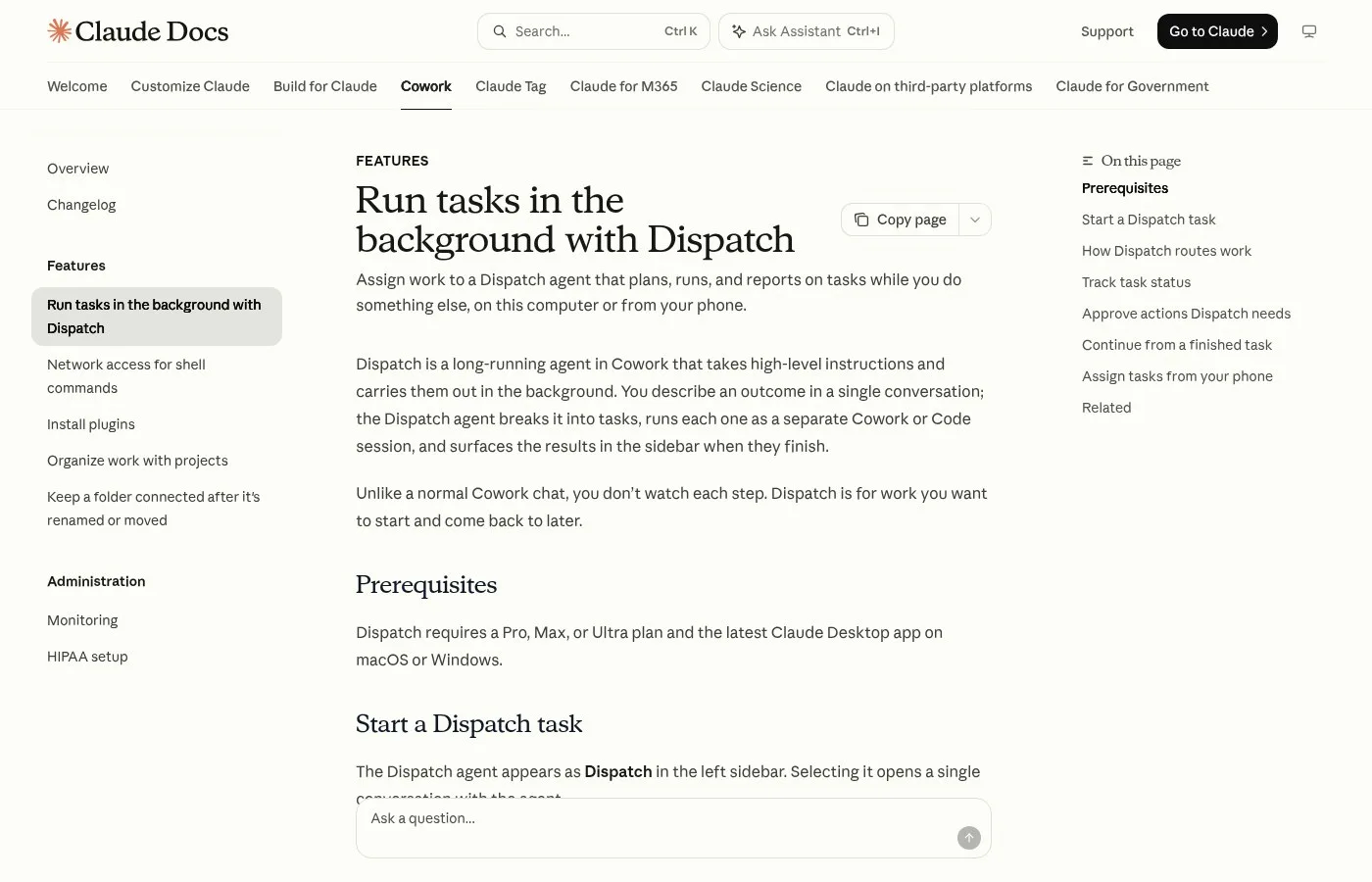
Screenshot of the Dispatch guide in the Claude docs.
What You Can Do With Dispatch
Dispatch is useful for any task your desktop Claude can already do with your files and connected tools. The examples below were all recorded between March and June 2026, and each one starts with a short message from a phone. The pattern is the same every time: you ask, Claude works on the desktop, and the answer lands back in the same chat on your phone.
Summarize email and draft replies
Since Cowork on your computer is connected to your Gmail account, you can just say, "Give me a summary of emails received today and draft messages ready to reply to them all."
Cowork then sends you the summary of all the emails you've gotten today, as well as drafted some replies.
So if you want to, you can now just accept these replies and tell Cowork to actually send these emails for you, and it will do that.
Check scheduled social posts
Say you just scheduled through Cowork posts to go out for all of your social media handles for tonight, and you want to ask it a question remotely to check on your posts. It asks you for permission to access your schedules, the utility you use via MCP to do all your social media handling.
The reply comes back: you've got four posts going out for today.
TikTok, Instagram, Facebook and YouTube. Executing your agent remotely. This is what it is, automation.
Ask your data a question on the way to work
With Claude Desktop connected, Claude also connected from your phone, and the Metabase MCP server connected too, pretend you're driving to work. You would say, "Hey, can you tell me how many orders we had this last month?"
Claude replies: "You had 256 orders in March. Want me to break that down further?"
So if you can imagine, you could just be driving on your way to work, you could be asking questions, and Claude's gonna be using the Metabase MCP and give you results.
Send a file before a meeting
Delayed, stuck in traffic, sick. Text Claude from your phone, it does the work for you.
Type export the pitch deck as a PDF and attach it to tomorrow's meeting invite. Claude opens your apps, finds your files, completes the task.
A task typed on the phone in the Dispatch section of the Claude app.
Permissions and Limits to Know
Permissions in Dispatch are the approvals Claude asks for before it touches a new app or file. As of November 2026 the help center lists Dispatch as a limited beta on some Pro, Max and Ultra plans. The docs also note that from October 6, 2026, new Cowork tasks on those plans run in the cloud, so check which mode a task uses.
If it's your first time doing some of these tasks, it will ask you for permissions, but it does ask you both on your computer and on your phone. So you can easily just allow this directly from the Claude app.
Right now, Dispatch is still in research preview mode. It's a bit rough around the edges.
Your desktop must be active. It works on your desktop computer, so if your computer is asleep, it won't work.
It's one continuous thread. All messages live in a single conversation.
You need the latest desktop app and the latest mobile app and you have to pair your phone. It's a little bit janky, but that's how every platform shift starts.
Is Dispatch an OpenClaw Alternative?
Dispatch is often compared with OpenClaw, the open source agent you message from chat apps, because both let you send a task from your phone. The difference in 2026 is that Dispatch is a first party Anthropic feature inside Claude Desktop, while OpenClaw is a separate tool you install and run yourself. Both can work while you are away, so the real choice is about where you want your agent to live.
Sound familiar? It should. That's exactly what OpenClaw does.
Two weeks ago, Cowork quietly shipped scheduled tasks, which are basically cron jobs, recurring automations and things like that. Now they've added remote messaging from your phone, browser automation through a Chrome plugin.
It can run persistent AI sessions on your desktop, execute scheduled tasks automatically, accept instructions remotely from your phone, browse the web and take actions in Chrome, access and manage files on your local computer and connect to external tools via MCP servers.
That's not a chatbot. That's an autonomous agent living on your computer.
Use Claude Cowork Dispatch With Pachat
Dispatch gets the work done on your computer, and Pachat is where you can put different AIs side by side to look at the result. Pachat is a web product at pachat.ai, described on the site as "Different personal AI agents, in one group chat."
- Let Dispatch finish the task and copy the summary or draft it sends to your phone.
- Open pachat.ai and put your Claude, Grok Bot, Muse and ChatGPT dots in one group chat.
- Paste the result and ask the group what to change. They check each other's facts and argue it out, then you make the call.
For more on running agents away from your desk, read the guide to Claude Code Remote Control, the list of OpenClaw alternatives and the guide to AI agents for business.
FAQ
What is Claude Cowork Dispatch?
Claude Cowork Dispatch is a feature in Claude Desktop that gives you one persistent conversation with Claude, which you can message from the Claude mobile app. Claude then does the task on your own computer with your files, connectors and apps. Anthropic released it as a research preview around March 18, 2026, and you come back to finished work instead of waiting at your desk.
How do I turn on Dispatch?
Open Claude Desktop, go to the Cowork settings and turn on Dispatch, then select Dispatch in the Cowork sidebar. Scan the QR code with the Claude mobile app to pair your phone. Creators who set it up in March 2026 also turned on computer use under settings and capabilities, so Claude can click through apps on the desktop for them.
Does my computer need to stay on for Dispatch?
Yes. As of November 2026 the Claude help center says your computer must be awake and Claude Desktop must be open, because Dispatch works on your own machine and not in a cloud session. During pairing you can allow a keep awake option that stops the computer from sleeping while Dispatch is running a task for you.
Which plans can use Claude Cowork Dispatch?
As of November 2026 the Claude help center describes Dispatch as a limited beta on some Pro, Max and Ultra plans, so not every account will see it yet. You also need the latest Claude Desktop app on macOS or Windows and the latest Claude mobile app. Check the Cowork sidebar in the desktop app to see if Dispatch appears for you.
What is the difference between Dispatch and Remote Control?
Remote Control, released in early 2026, connects your phone to a Claude Code session you already started in a terminal on your computer. Dispatch lets you start a brand new task from your phone, and Claude decides whether to run it as a Cowork session or a Claude Code session. Both keep the actual work on your own computer.
Can Pachat show me what Dispatch did?
Pachat does not run Dispatch, but it is a good place to review the result with more than 1 AI. Pachat is a web product at pachat.ai where you put your Claude, Grok Bot, Muse and ChatGPT dots in one group chat. Paste the summary or draft, and they check each other's facts and argue it out, then you make the call.
Ready to put different AIs in one group chat? Start at pachat.ai.
References
- Claude Help Center, "Assign tasks from anywhere in Claude Cowork," fetched 2026-11-18: https://support.claude.com/en/articles/13947068
- Claude Docs, "Dispatch," fetched 2026-11-18: https://claude.com/docs/cowork/guide/dispatch
- Claude, "Dispatch and computer use," fetched 2026-11-18: https://claude.com/resources/articles/dispatch-and-computer-use
- @mats_stafsberg, 2026-03-18: https://x.com/mats_stafsberg/status/2034246023246459332
- @bread_, 2026-03-18: https://x.com/bread_/status/2034268734664454400
- @JohnElderAI, 2026-03-20: https://x.com/JohnElderAI/status/2034800961030693147
- @hjenki02, 2026-04-28: https://x.com/hjenki02/status/2049243591948574861
- @HeffHQ, 2026-04-29: https://x.com/HeffHQ/status/2049560315667587363
- @processguru, 2026-06-15: https://x.com/processguru/status/2066536461961412849